# Service Plans

Service plans create a structured agreement between the service provider and the customer, ensuring reliable maintenance, predictable costs, and efficient service operations. They are an essential component of field service management because they support both business goals and customer needs.

Field service manager allows user to add multiple service plan against one account. To add record user can click on add (+) button present beside list name, once clicked they will be navigated to below screen.

<figure><img src="https://794987320-files.gitbook.io/~/files/v0/b/gitbook-x-prod.appspot.com/o/spaces%2F-MCRVg-TYx3gVa2Tqtf_%2Fuploads%2F7EjCND9qtZfUkfNChIQj%2Fimage.png?alt=media&#x26;token=b5adef32-c847-4019-bf74-78c51face01f" alt=""><figcaption></figcaption></figure>

**Field List and Descriptions**

<table data-header-hidden><thead><tr><th width="74" valign="bottom"></th><th width="156" valign="bottom"></th><th valign="bottom"></th></tr></thead><tbody><tr><td valign="bottom"><strong>Sr. No.</strong></td><td valign="bottom"><strong>Field Name</strong></td><td valign="bottom"><strong>Short Description</strong></td></tr><tr><td valign="bottom">1</td><td valign="bottom">Service plan no</td><td valign="bottom">Auto generated unique number for service plan record.</td></tr><tr><td valign="bottom">2</td><td valign="bottom">Customer</td><td valign="bottom">Lookup field to account for which service plan is added.</td></tr><tr><td valign="bottom">3</td><td valign="bottom">Site contact</td><td valign="bottom">Lookup field for primary contact on site.</td></tr><tr><td valign="bottom">4</td><td valign="bottom">Service engineer</td><td valign="bottom">Lookup field to service engineer to which this service plan is assigned.</td></tr><tr><td valign="bottom">5</td><td valign="bottom">Status</td><td valign="bottom">Display status of service plan for example active, cancelled, in review etc.</td></tr><tr><td valign="bottom">6</td><td valign="bottom">Type</td><td valign="bottom">Display type of service plan.</td></tr><tr><td valign="bottom">7</td><td valign="bottom">Start date</td><td valign="bottom">The Start Date marks the first day the service plan becomes active.</td></tr><tr><td valign="bottom">8</td><td valign="bottom">End date</td><td valign="bottom">The End Date indicates when the service plan expires.</td></tr><tr><td valign="bottom">9</td><td valign="bottom">Site specific instructions</td><td valign="bottom">Display any special instruction related to site.</td></tr><tr><td valign="bottom">10</td><td valign="bottom">Frequency</td><td valign="bottom">Dropdown field to determine the frequency of service plan.</td></tr><tr><td valign="bottom">11</td><td valign="bottom">Days</td><td valign="bottom">Displays number of days for which service plan is valid.</td></tr><tr><td valign="bottom">12</td><td valign="bottom">Invoice tax %</td><td valign="bottom">Percentage of tax that are been included in invoice.</td></tr><tr><td valign="bottom">13</td><td valign="bottom">Apply engineer rate?</td><td valign="bottom">Checkbox to determine if engineer’s rates define at engineer level needs to apply or not.</td></tr><tr><td valign="bottom">14</td><td valign="bottom">Standard charge</td><td valign="bottom">The Standard Charge field represents the default cost associated with the service plan. It is typically used to define the base amount the customer pays for enrolling in or maintaining the service plan.</td></tr><tr><td valign="bottom">15</td><td valign="bottom">Travel charge</td><td valign="bottom">The Travel Charge field represents the cost associated with the technician’s travel to the customer’s location. This charge typically covers expenses such as fuel, travel time, distance-based costs, or logistical overhead.</td></tr><tr><td valign="bottom">16</td><td valign="bottom">Terms and conditions</td><td valign="bottom">The Terms and Conditions field outlines the rules, obligations, and guidelines associated with a service plan. It defines what is included, excluded, and the responsibilities of both the service provider and the customer.</td></tr></tbody></table>

#### &#x20;**Key Sections**

•  **Job Info**\
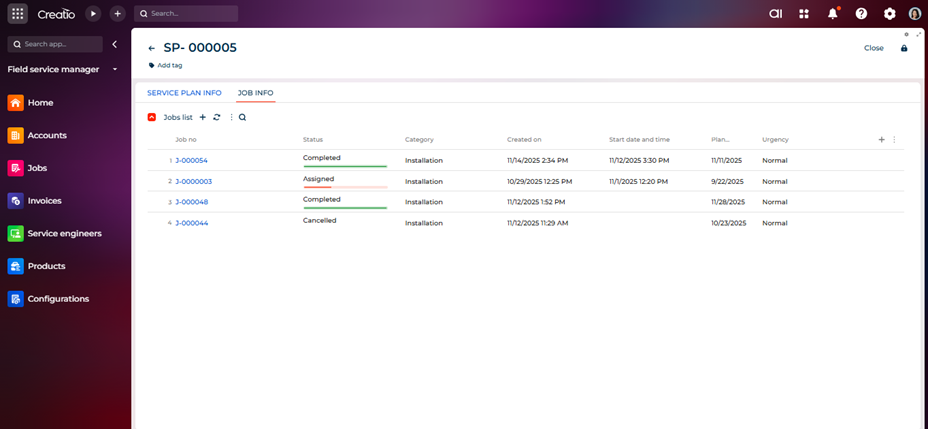
On service plan summary screen, a tab is available naming “Job Info”, this shows the list of jobs created against the service plan.

<figure><img src="https://794987320-files.gitbook.io/~/files/v0/b/gitbook-x-prod.appspot.com/o/spaces%2F-MCRVg-TYx3gVa2Tqtf_%2Fuploads%2FN3SGjS1dxrsGLupH08N3%2Fimage.png?alt=media&#x26;token=e4ad1c3d-6aea-4632-a075-91ef4f1e4fc1" alt=""><figcaption></figcaption></figure>

Users can create a new job linked to a service plan by clicking the Add (+) button located next to the service plan name in the list.