> For the complete documentation index, see [llms.txt](https://docs.greytrix.com/llms.txt). Markdown versions of documentation pages are available by appending `.md` to page URLs; this page is available as [Markdown](https://docs.greytrix.com/sage-crm-add-ons/crm-resource-planner/support.md).
# Support
### Troubleshooting the Installation
If you encounter problems during the installation of Resource Planner, verify the following configuration settings before contacting support.
#### IIS Configuration
Verify the following IIS settings:
* Ensure **Enable Parent Paths** is enabled.
* Open **IIS**.
* Right-click the **CRM** folder and select **Properties**.
* On the **Virtual Directory** tab, click **Configuration**.
* Enable the **Enable Parent Paths** option.
* Ensure **Execute Permissions** are configured to allow **Scripts** to run.
#### Refresh CRM Metadata
Refresh the Sage CRM metadata by navigating to:
**Administration → System → Metadata**
#### Restart IIS
Reset IIS after making configuration changes.
If any IIS policies have been modified, restart the server to ensure the changes take effect.
### Troubleshooting Resource Planner
If you experience errors when accessing Resource Planner within Sage CRM, verify the Resource Planner configuration described in **Section 2.3**.
Check the following:
* Log in using a **Sage CRM Administrator** account or a user with equivalent administrative privileges.
* Navigate to **Administration → Users → Users** and verify that the appropriate Resource Planner access options are enabled for the user.
* Configure the required resources through **Administration → Users → New User**.
**Note:** Non-user resources should be configured as **True**. This identifies the account as a resource, allowing it to be used within Resource Planner without consuming an additional user license.
#### Database Requirements
Resource Planner is designed to operate with a populated Sage CRM database.
If Sage CRM is installed without sample or existing data, Resource Planner requires at least:
* One **Company**
* One **Person**
* One additional **User** (other than the Administrator)
Without these records, Resource Planner may generate errors during operation.
#### Windows Server 2008 / IIS 7 Configuration
If you are using **Windows Server 2008** or **IIS 7**, verify the following settings.
**Enable Active Server Pages**
1. Click **Start → Run**.
2. Type **INETMGR** and press **Enter**.
Open **ISAPI and CGI Restrictions**.
4. Verify that **Active Server Pages** are **Allowed**.
**Enable 32-Bit Applications**
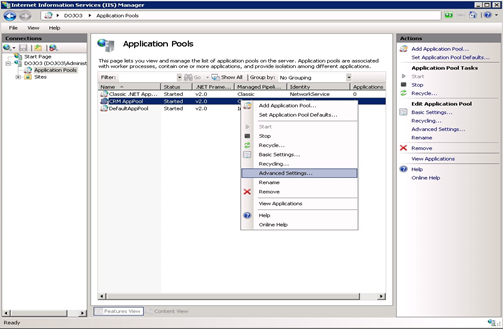
On Windows Server 2008, IIS does not allow Application Pools to run 32-bit applications by default. This may result in an **HTTP 500** error when accessing Sage CRM or Resource Planner.
To enable 32-bit applications:
1. Click **Start → Run**.
2. Type **INETMGR** and press **Enter**.
3. Select **Application Pools**.
4. Right-click the **CRM Application Pool** and choose **Advanced Settings**.
5. Set **Enable 32-Bit Applications** to **True**.
6. Save the changes and restart IIS if required.