> For the complete documentation index, see [llms.txt](https://docs.greytrix.com/llms.txt). Markdown versions of documentation pages are available by appending `.md` to page URLs; this page is available as [Markdown](https://docs.greytrix.com/sage-crm-add-ons/crm-contract-manager/user-guide/creating-a-new-contract.md).

# Creating a New Contract

CRM **Contract Manager** allows users to create and manage contracts directly within Sage CRM.

To create a new contract:

1. Right-click the **New** menu from the left-hand navigation.
2. Select **Contract**.

<figure><img src="https://794987320-files.gitbook.io/~/files/v0/b/gitbook-x-prod.appspot.com/o/spaces%2F-MCRVg-TYx3gVa2Tqtf_%2Fuploads%2FDV5NPHEbuin6zxYkDh26%2FNew.png?alt=media&amp;token=a1c2e5ff-2084-42e4-9bb0-9b718b2667f5" alt=""><figcaption></figcaption></figure>

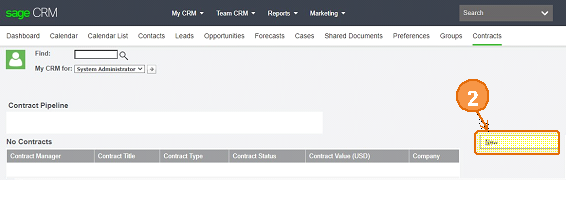
3. Alternatively, create a new contract using the **CRM Top Menu**.

<figure><img src="https://794987320-files.gitbook.io/~/files/v0/b/gitbook-x-prod.appspot.com/o/spaces%2F-MCRVg-TYx3gVa2Tqtf_%2Fuploads%2FXtvmg2AMZ9Wqc85rX12L%2FTop%20Menu.png?alt=media&amp;token=457340cd-0cc0-48b5-ac6a-f4a106227dbc" alt=""><figcaption></figcaption></figure>

<figure><img src="https://794987320-files.gitbook.io/~/files/v0/b/gitbook-x-prod.appspot.com/o/spaces%2F-MCRVg-TYx3gVa2Tqtf_%2Fuploads%2FvtZ6uyreOKYbz5vbtqQq%2FNew%20Button.png?alt=media&amp;token=c2ec453f-dd1e-437b-a613-afe7e615fbde" alt=""><figcaption></figcaption></figure>

4. Enter the required contract details.

<figure><img src="https://794987320-files.gitbook.io/~/files/v0/b/gitbook-x-prod.appspot.com/o/spaces%2F-MCRVg-TYx3gVa2Tqtf_%2Fuploads%2F3rWtRZlemWAqjzm5YiSu%2FDetails.png?alt=media&amp;token=b2802db4-c5db-4865-a214-cea7eb8ac911" alt=""><figcaption></figcaption></figure>

5. Click Save to create the contract.

### Contract Details

After creating a contract, the Contract Summary screen displays the contract information and allows users to manage all contract-related details.

<figure><img src="https://794987320-files.gitbook.io/~/files/v0/b/gitbook-x-prod.appspot.com/o/spaces%2F-MCRVg-TYx3gVa2Tqtf_%2Fuploads%2FcvMTl9V1XqADq26Yu2vz%2FRecord.png?alt=media&amp;token=3793c1d2-237d-43f5-a061-c42c1b3d676e" alt=""><figcaption></figcaption></figure>

<table data-header-hidden><thead><tr><th valign="top"></th><th valign="top"></th></tr></thead><tbody><tr><td valign="top">Field Name</td><td valign="top">Description</td></tr><tr><td valign="top">Contract Title</td><td valign="top"><p>The title of the Contract. (required)</p><p> </p></td></tr><tr><td valign="top"><p>Contract Type</p><p> </p></td><td valign="top"><p>A choice of contract types. By choosing a contract type certain templates will be available.</p><p> </p></td></tr><tr><td valign="top">Contract Manager</td><td valign="top"><p>Uses CRM Users. (required)</p><p> </p></td></tr><tr><td valign="top">Team</td><td valign="top"><p>Uses CRM Teams</p><p> </p></td></tr><tr><td valign="top">Contract Duration</td><td valign="top"><p>As Stated</p><p> </p></td></tr><tr><td valign="top">Contract Status</td><td valign="top"><p>As Stated</p><p> </p></td></tr><tr><td valign="top">Notice Period in Days</td><td valign="top"><p>Integer Only, defaults to 30 days. When set the system will send a reminder to the manager at the set amount of days before the contract “Notify End Date”</p><p> </p></td></tr><tr><td valign="top">Payment Conditions</td><td valign="top"><p>The terms of payment for this contract.</p><p> </p></td></tr><tr><td valign="top">Supplier</td><td valign="top"><p>Uses CRM Company. (required)</p><p> </p></td></tr><tr><td valign="top">Supplier Contact</td><td valign="top"><p>Uses CRM Person</p><p> </p></td></tr><tr><td valign="top">Territory</td><td valign="top"><p>Uses CRM Territories</p><p> </p></td></tr><tr><td valign="top">Contract Description</td><td valign="top"><p>Full description of the contract.</p><p> </p></td></tr><tr><td valign="top">Contract Value</td><td valign="top"><p>Integer Only, uses the currency type set during the installation of Sage CRM. </p><p> </p></td></tr><tr><td valign="top">Start Date</td><td valign="top"><p>The date the Contract comes into effect. By default this date is set when the contract has moved through the workflow and reached a status of “Approved”</p><p> </p></td></tr><tr><td valign="top"><p>End Date</p><p> </p></td><td valign="top"><p>This date is set when the Contract has moved through the workflow and reached the status of approved, The calculation of the contract duration and the Start Date results in the End Date</p><p> </p></td></tr><tr><td valign="top">Notify End Date</td><td valign="top"><p>This date is set when the Contract has moved through the workflow and reached the status of approved, The calculation of the “Notice Period in Days” and the Start Date results in the Notify End Date</p><p> </p></td></tr><tr><td valign="top">Created By</td><td valign="top"><p>Defaults to User</p><p> </p></td></tr><tr><td valign="top">Created Date</td><td valign="top"><p>Defaults to Today’s Date</p><p> </p></td></tr><tr><td valign="top">Updated By</td><td valign="top"><p>Defaults to User</p><p> </p></td></tr><tr><td valign="top">Updated Date</td><td valign="top"><p>Defaults to Today’s Date</p><p> </p></td></tr><tr><td valign="top">Case</td><td valign="top"><p>This can link the contract to a case</p><p> </p></td></tr></tbody></table>
