# Sales Order Creation and Promotion

**Creating a direct Sales Order**

The GUMU™ Sage Integration for Salesforce is a real-time bi-directional link that synchronizes data from Salesforce to Sage X3 and vice versa. You can use the GUMU™ to promote Sales Orders from Salesforce to Sage.

1. Click the Sales Order tab to display a list of all Orders in Salesforce, and click **New** to create a new Sales Order.

<figure><img src="https://794987320-files.gitbook.io/~/files/v0/b/gitbook-x-prod.appspot.com/o/spaces%2F-MCRVg-TYx3gVa2Tqtf_%2Fuploads%2FcO7jbeyjA3Ysn9MzXpUY%2Fimage.png?alt=media&#x26;token=b11ae9aa-0c14-4239-a9b1-d8dbd576fea8" alt=""><figcaption></figcaption></figure>

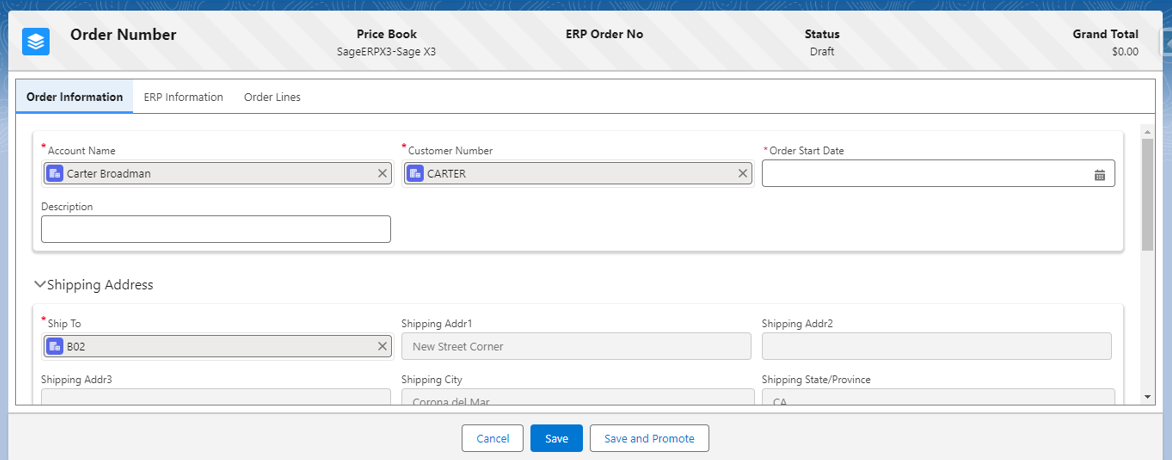
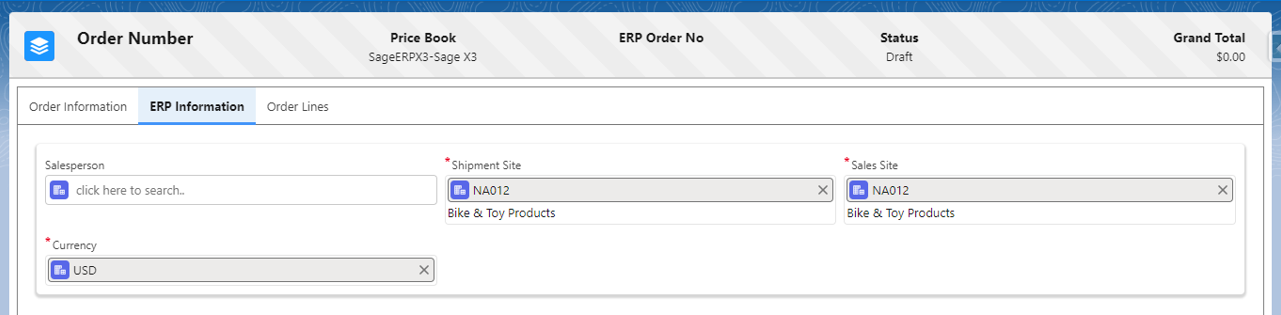
2. A new page will open with three tabs where you are required to add details and promote the Sales Order to Sage X3, in the first tab **Order Information** select the Customer and Address.

<figure><img src="https://794987320-files.gitbook.io/~/files/v0/b/gitbook-x-prod.appspot.com/o/spaces%2F-MCRVg-TYx3gVa2Tqtf_%2Fuploads%2F3l8RiRXH0ZSMBoMbYR2J%2Fimage.png?alt=media&#x26;token=b5502d20-2e5a-4b6d-8d86-641ad4dbd842" alt=""><figcaption><p>Order Information tab</p></figcaption></figure>

<figure><img src="https://794987320-files.gitbook.io/~/files/v0/b/gitbook-x-prod.appspot.com/o/spaces%2F-MCRVg-TYx3gVa2Tqtf_%2Fuploads%2FvvSOXcDCOGT6oy0Wn7CT%2Fimage.png?alt=media&#x26;token=94ab45f6-34ab-4a49-a1a1-f6b9c1449400" alt=""><figcaption><p>ERP Information tab</p></figcaption></figure>

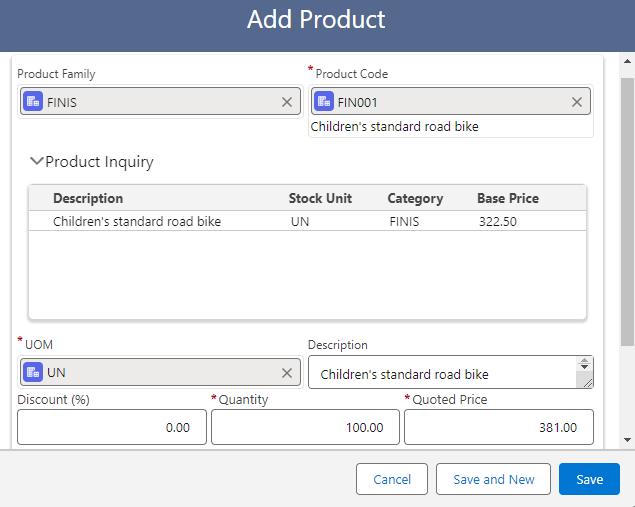
3. In the **Order Lines** tab, you can add products to the Order, once done click **Save.**

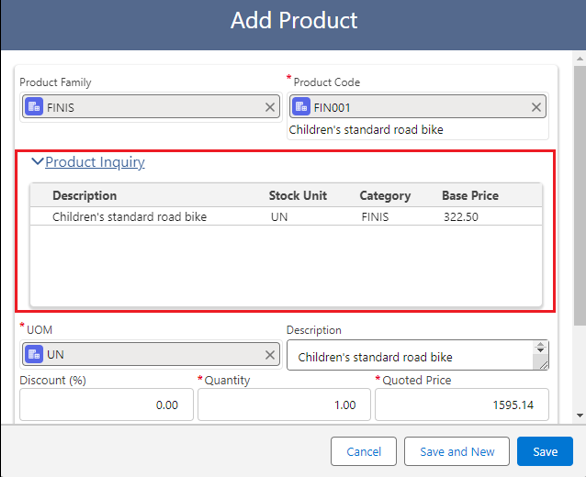
**\*Product Inquiry:** This feature allows you to view real-time Product information in Sage when adding or updating products in Sales Orders in Salesforce.

<figure><img src="https://794987320-files.gitbook.io/~/files/v0/b/gitbook-x-prod.appspot.com/o/spaces%2F-MCRVg-TYx3gVa2Tqtf_%2Fuploads%2FEctHUrgQu5rJCmyI4JDC%2Fimage.png?alt=media&#x26;token=2d98961e-f4d9-4fde-a014-bca33d35f117" alt=""><figcaption></figcaption></figure>

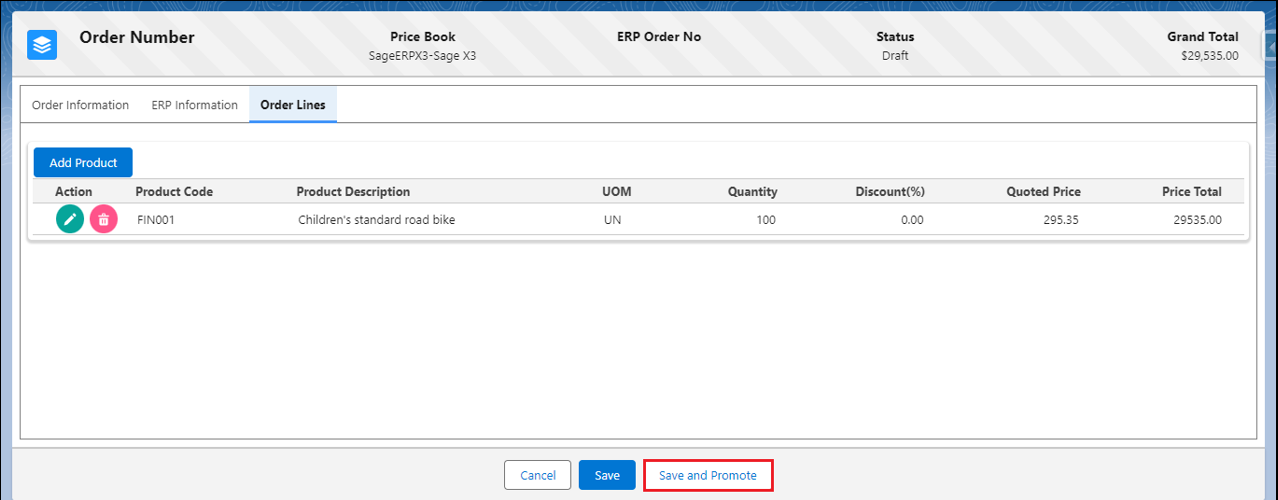
4. Once adding all the required details, click the **Save and Promote** button (An ERP Order Number will be generated).

<figure><img src="https://794987320-files.gitbook.io/~/files/v0/b/gitbook-x-prod.appspot.com/o/spaces%2F-MCRVg-TYx3gVa2Tqtf_%2Fuploads%2FDYzczNCLKyalvnT6bKwH%2Fimage.png?alt=media&#x26;token=81a49dfe-d3ed-482a-bdc9-e1252cb7e5c2" alt=""><figcaption></figcaption></figure>

<figure><img src="https://794987320-files.gitbook.io/~/files/v0/b/gitbook-x-prod.appspot.com/o/spaces%2F-MCRVg-TYx3gVa2Tqtf_%2Fuploads%2FZAtZfAKh5fzIZyuBsPVR%2Fimage.png?alt=media&#x26;token=86752732-d13a-4f19-8064-5e7694d3a405" alt=""><figcaption></figcaption></figure>

<figure><img src="https://794987320-files.gitbook.io/~/files/v0/b/gitbook-x-prod.appspot.com/o/spaces%2F-MCRVg-TYx3gVa2Tqtf_%2Fuploads%2FegTGqRJyBGrpBRdTlu8Z%2Fimage.png?alt=media&#x26;token=d17dbd16-c060-4dc5-8560-cee43417d06e" alt=""><figcaption></figcaption></figure>

<figure><img src="https://794987320-files.gitbook.io/~/files/v0/b/gitbook-x-prod.appspot.com/o/spaces%2F-MCRVg-TYx3gVa2Tqtf_%2Fuploads%2Fqn1f7A8cWGjDfH6Yy5pW%2Fimage.png?alt=media&#x26;token=fbfb8a40-2391-413a-b0bb-ac84ebef46fa" alt=""><figcaption><p>Sales Order Line</p></figcaption></figure>

#### **Creating a Sales Order from a Quote**

5. Use the Standard Salesforce Sales Workflow to promote a Sales Order to Sage from a Salesforce Quote.

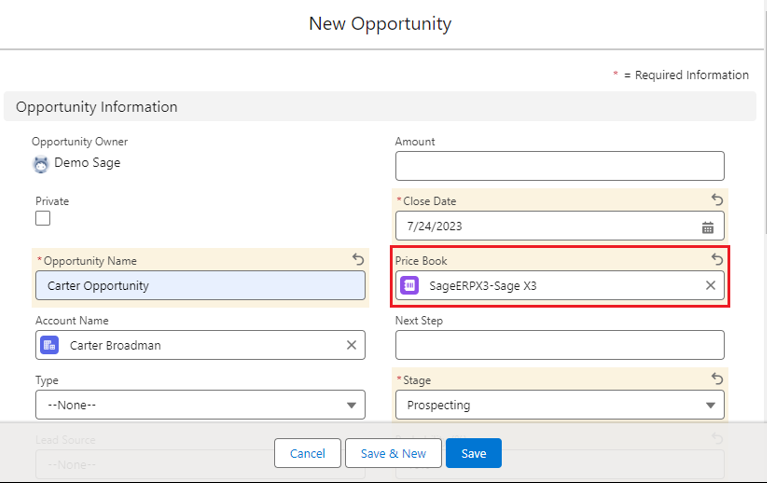
**Note:** Before you choose the Price Book for an Opportunity, make sure both the Price Book and the associated Products are active.

6. Navigate to the  **Accounts** tab and select the Account to create an Opportunity.

<figure><img src="https://794987320-files.gitbook.io/~/files/v0/b/gitbook-x-prod.appspot.com/o/spaces%2F-MCRVg-TYx3gVa2Tqtf_%2Fuploads%2F4jrgT1RkvJhIBLlLIR19%2Fimage.png?alt=media&#x26;token=11811f9b-4a96-4edc-9192-1666c2a6c494" alt=""><figcaption></figcaption></figure>

7. On the Account’s **Related** tab, you can scroll and see the Opportunities section, click the **New** button to create an Opportunity (select the required fields and **Price Book** to select the products for the Quote).

<figure><img src="https://794987320-files.gitbook.io/~/files/v0/b/gitbook-x-prod.appspot.com/o/spaces%2F-MCRVg-TYx3gVa2Tqtf_%2Fuploads%2F5EeFN50dGNiKR3N7hbMR%2Fimage.png?alt=media&#x26;token=05d1ca0d-2355-45ec-b7b0-ebc3af518ba4" alt=""><figcaption></figcaption></figure>

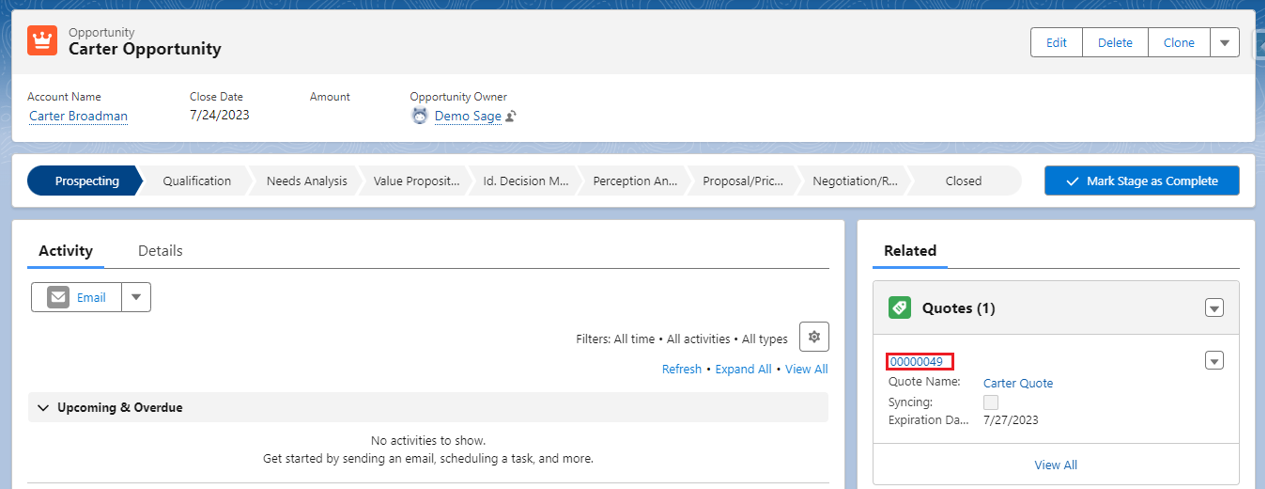
8. After creating the Opportunity, navigate to the created Opportunity and scroll to the Quotes section on the right-hand side under Related.

<figure><img src="https://794987320-files.gitbook.io/~/files/v0/b/gitbook-x-prod.appspot.com/o/spaces%2F-MCRVg-TYx3gVa2Tqtf_%2Fuploads%2FeUl8pVhs4IEm6fRXmGEX%2Fimage.png?alt=media&#x26;token=5aac9eaf-1292-4105-83de-b8b6199f78bf" alt=""><figcaption></figcaption></figure>

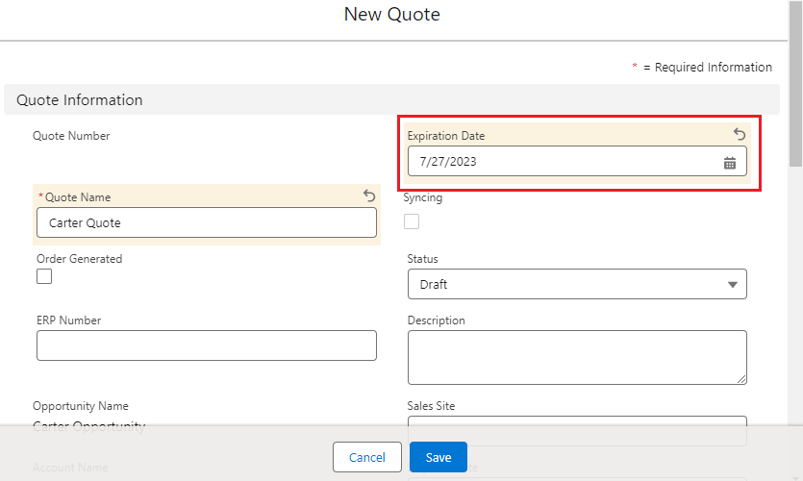
9. Click the **New Quote** Button on the top right of the Quotes page (or select **New Quote** from the drop down menu next to the Quotes section on the Opportunity page), the New Quote window will pop up, fill in the required fields, and **Save.**

**Note:** Make sure to fill in the **Expiration Date** before saving the Quote.

<figure><img src="https://794987320-files.gitbook.io/~/files/v0/b/gitbook-x-prod.appspot.com/o/spaces%2F-MCRVg-TYx3gVa2Tqtf_%2Fuploads%2FZMcVR1Tiyv9HBXroWVra%2Fimage.png?alt=media&#x26;token=4585fcb7-03f8-4f3a-b343-7f5c494f7119" alt=""><figcaption></figcaption></figure>

10. You can view the Quote by clicking on the Quote number under the Quotes section of the Opportunity page on the right hand side under Related.

<figure><img src="https://794987320-files.gitbook.io/~/files/v0/b/gitbook-x-prod.appspot.com/o/spaces%2F-MCRVg-TYx3gVa2Tqtf_%2Fuploads%2FEQgeFwppEJaoeLveIrVA%2Fimage.png?alt=media&#x26;token=15b1b2b0-28ec-4677-b76b-94783ab69299" alt=""><figcaption></figcaption></figure>

11. To add products to the Quote click the **New ERP Products** button.
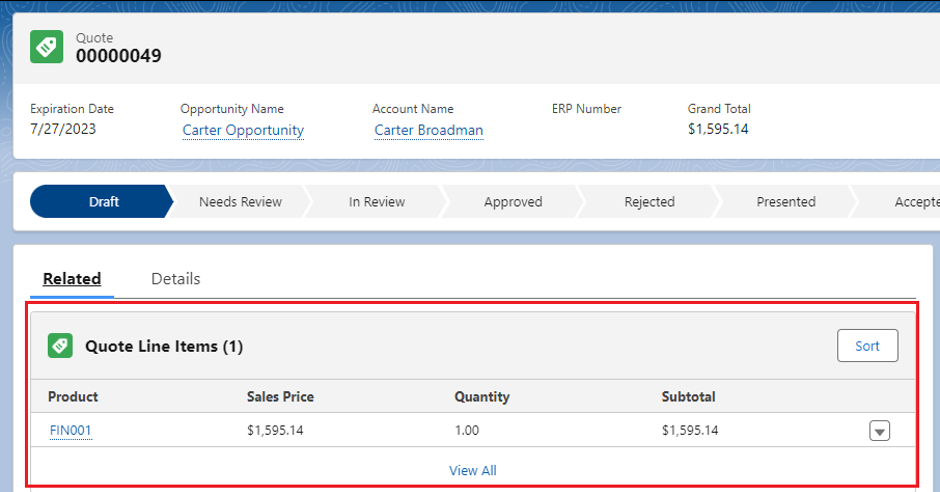
12. Select the required fields on the New ERP Product screen and click **Save.**

<figure><img src="https://794987320-files.gitbook.io/~/files/v0/b/gitbook-x-prod.appspot.com/o/spaces%2F-MCRVg-TYx3gVa2Tqtf_%2Fuploads%2FI67gwPyVxZUjQPRSXgQo%2Fimage.png?alt=media&#x26;token=ef772310-5c8c-43fe-af36-63513cf562cc" alt=""><figcaption></figcaption></figure>

13. The added product will be listed under the Quote line items section under the **Related** tab.

<figure><img src="https://794987320-files.gitbook.io/~/files/v0/b/gitbook-x-prod.appspot.com/o/spaces%2F-MCRVg-TYx3gVa2Tqtf_%2Fuploads%2Fl2X0xbhGpGF7KEkk8jB0%2Fimage.png?alt=media&#x26;token=2327b3cd-72c3-4e0a-9213-43866f664034" alt=""><figcaption></figcaption></figure>

14. You can promote the Quote from Salesforce to Sage by clicking on the **Promote Quote** button.
15. To generate the Order from the Quote click on the **Generate Order** button that is located on the right upper corner of the Quote screen.

<figure><img src="https://794987320-files.gitbook.io/~/files/v0/b/gitbook-x-prod.appspot.com/o/spaces%2F-MCRVg-TYx3gVa2Tqtf_%2Fuploads%2FbFyCBQY3pOBXUcI3lPGt%2Fimage.png?alt=media&#x26;token=eff86ff4-5345-47f5-bd06-b88d7ea8fa7d" alt=""><figcaption></figcaption></figure>

<figure><img src="https://794987320-files.gitbook.io/~/files/v0/b/gitbook-x-prod.appspot.com/o/spaces%2F-MCRVg-TYx3gVa2Tqtf_%2Fuploads%2FqZTnXsMrALaTAUFy8wFn%2Fimage.png?alt=media&#x26;token=54d97d8f-8cf5-4348-a1cd-9fddf51978a2" alt=""><figcaption></figcaption></figure>

16. The **Order Generated** checkbox gets checked automatically.

<figure><img src="https://794987320-files.gitbook.io/~/files/v0/b/gitbook-x-prod.appspot.com/o/spaces%2F-MCRVg-TYx3gVa2Tqtf_%2Fuploads%2Fcm4xXdUtxk1hGBQL80t2%2Fimage.png?alt=media&#x26;token=59978005-0c4b-4ff5-bca7-5db68880d826" alt=""><figcaption></figcaption></figure>

17. The Order will **ONLY** be visible in the Sales Order Layout of the GUMU™ Integration (click on the Sales Order tab).

<figure><img src="https://794987320-files.gitbook.io/~/files/v0/b/gitbook-x-prod.appspot.com/o/spaces%2F-MCRVg-TYx3gVa2Tqtf_%2Fuploads%2FHmyH5PZswhdrgZgCrfU6%2Fimage.png?alt=media&#x26;token=e0ca9309-5215-43a9-ab7b-d337f717c28d" alt=""><figcaption></figcaption></figure>

18. Once the Order is generated in Salesforce you can Promote the Order to Sage (if you have [appropriate rights](https://www.greytrix.com/blogs/salesforce/2019/09/10/gumu-features-security-matrix-in-salesforce-lightning-interface/)), and click on the **Edit**  button (pencil icon) under the Action Panel.
19. The product Inquiry provides the user the ability to view Real-Time Information about the product while adding/updating line items on the GUMU™ Sales Order screen.

<figure><img src="https://794987320-files.gitbook.io/~/files/v0/b/gitbook-x-prod.appspot.com/o/spaces%2F-MCRVg-TYx3gVa2Tqtf_%2Fuploads%2F48ckYCqbjXGqPVl1rGTO%2Fimage.png?alt=media&#x26;token=90a6a8a6-06b3-4361-9216-de17f451cc3c" alt=""><figcaption></figcaption></figure>

20. &#x20;Click the **Save and Promote** button (an ERP Order Number gets generated).

<figure><img src="https://794987320-files.gitbook.io/~/files/v0/b/gitbook-x-prod.appspot.com/o/spaces%2F-MCRVg-TYx3gVa2Tqtf_%2Fuploads%2F8JCBtm9Bk8SmKi4n6Ums%2Fimage.png?alt=media&#x26;token=72c898a3-ea0a-4cac-b909-83bb24f39ae9" alt=""><figcaption></figcaption></figure>

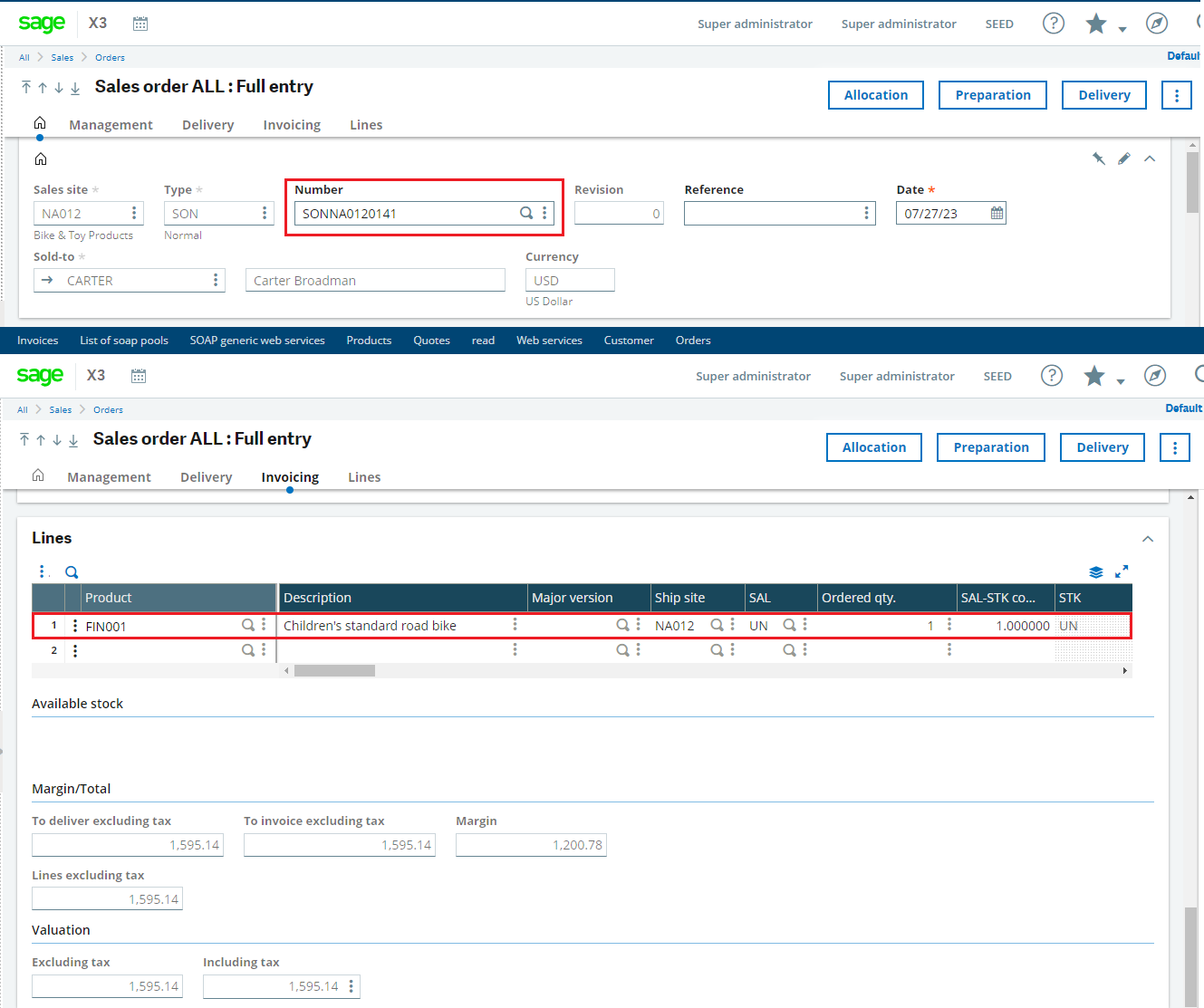
21. To verify whether the Order has been promoted to Sage X3, navigate to the Order module and type the ERP order number generated in Salesforce. The details of the Order will be

<figure><img src="https://794987320-files.gitbook.io/~/files/v0/b/gitbook-x-prod.appspot.com/o/spaces%2F-MCRVg-TYx3gVa2Tqtf_%2Fuploads%2F8zVYrGLRqibYpCUpnPkw%2Fimage.png?alt=media&#x26;token=9e6ae046-22dc-438d-a06a-6e2175f8d0aa" alt=""><figcaption></figcaption></figure>

This way the data gets smoothly transferred to the ERP system.