> For the complete documentation index, see [llms.txt](https://docs.greytrix.com/llms.txt). Markdown versions of documentation pages are available by appending `.md` to page URLs; this page is available as [Markdown](https://docs.greytrix.com/gumu-salesforce-integration/sagex3/transaction/contact-creation-and-promotion.md).
# Contact Creation and Promotion
**Note:** To promote Contacts the associated Account must be Linked/Promoted to Sage X3.
1. Select the Account for which you wish to create and promote a Contact from Salesforce to Sage (here we are going to create a Contact for the Linked Account: Carter Broadman).
2. Click the **Related** tab on the Salesforce Account Page, scroll down to the Contacts section, and click the **New** button to create a new Contact for the Account.
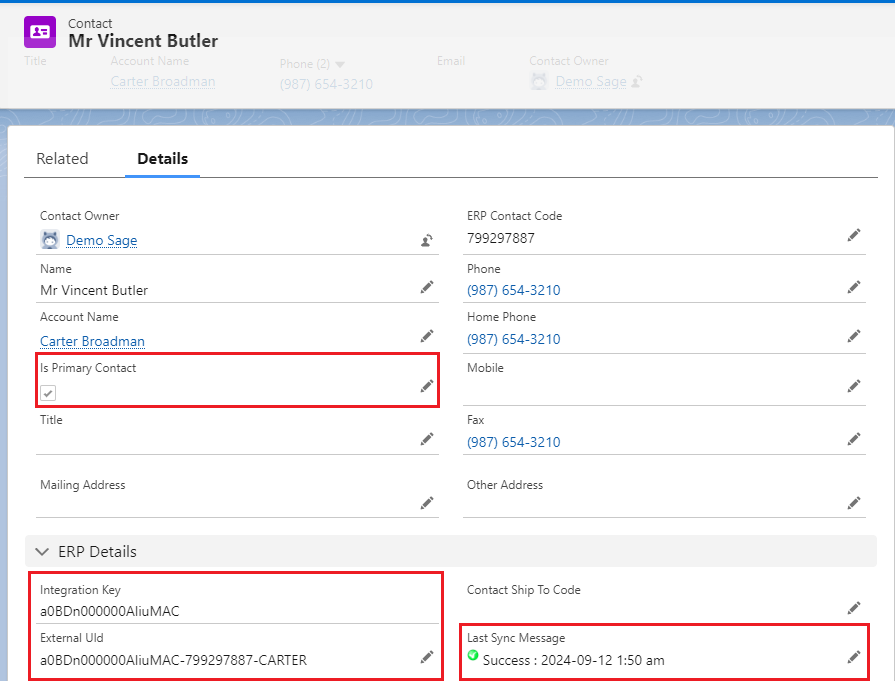
3. Once you have filled out all of the required information check the **Is Primary Contact?** checkbox and then click **Save** to store the newly created record (this will promote the contact).
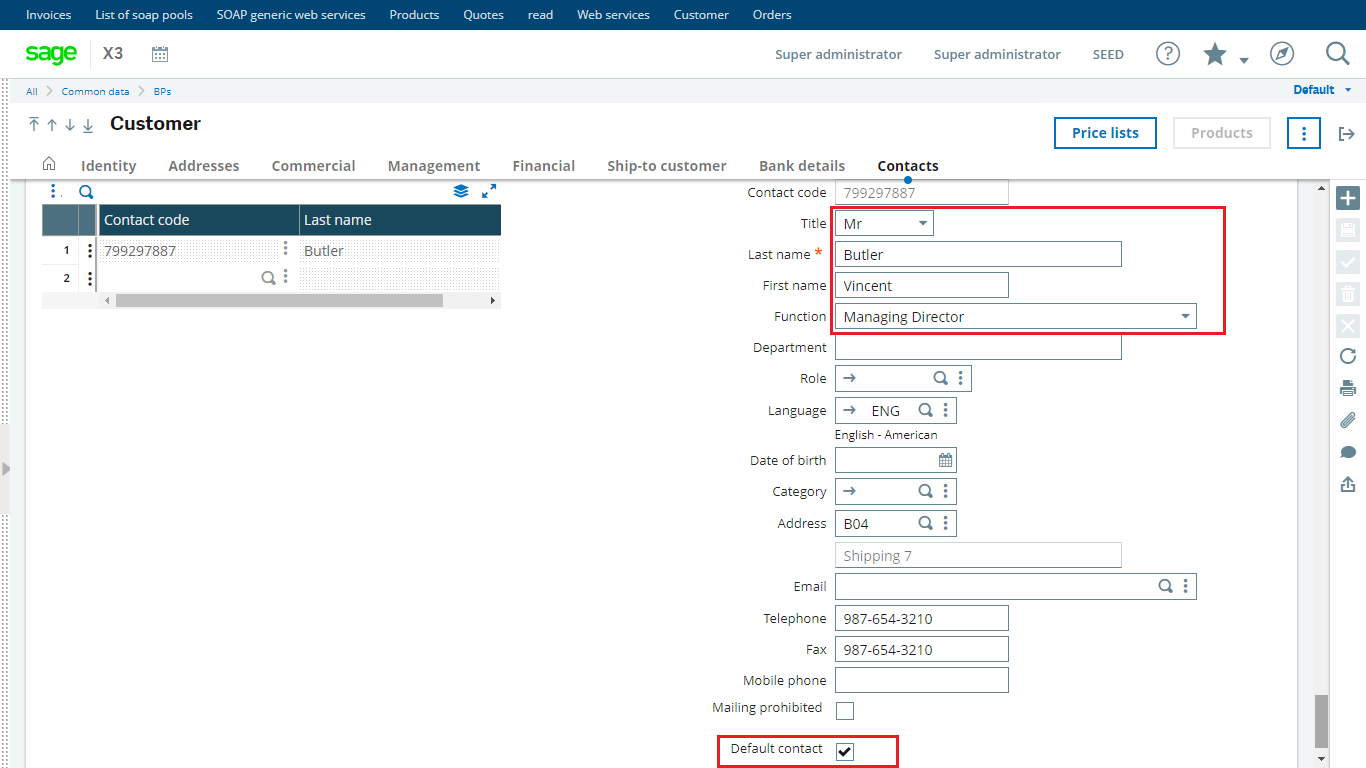
4. A message will appear in the Last Sync Message field, confirming that the Contact has been successfully promoted.