# Link Account

The GUMU™ is a real-time bi-directional integration, using the GUMU™ you can import new customers from Sage to Salesforce. But what if a Customer already exists in Salesforce? You will have to link the existing Customer before bringing it from Sage to Salesforce to avoid duplication. The GUMU™ **Link Account** feature helps you do this.

Once the Salesforce Accounts gets linked with Sage Customers, you can see real-time inquiries (Customer Details, Sales Orders, Invoices, etc.) in Salesforce. You can also create Sales Orders for that linked account and promote them to Sage.

To link Salesforce Accounts with Sage 300C Customers, follow the steps below:

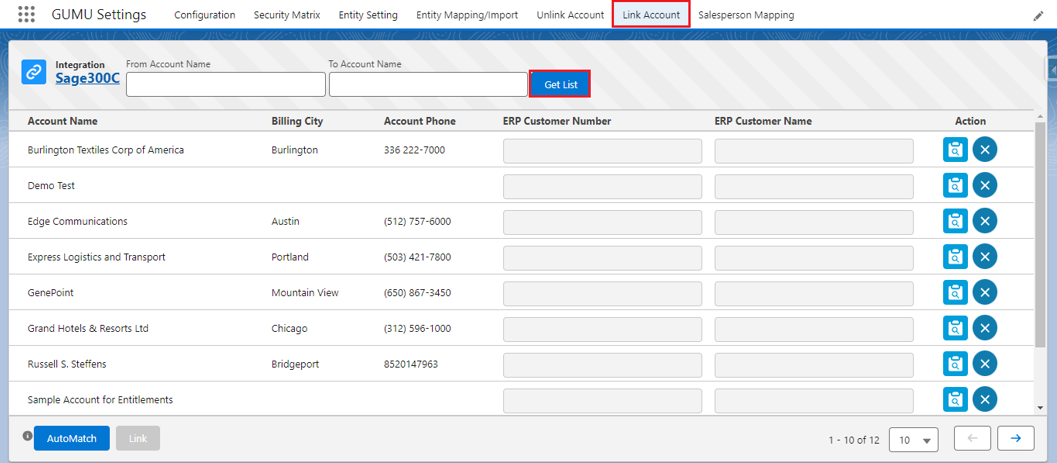
1. Navigate to the **GUMU™ Settings** app and then click on the **Link Account** tab.

<figure><img src="https://794987320-files.gitbook.io/~/files/v0/b/gitbook-x-prod.appspot.com/o/spaces%2F-MCRVg-TYx3gVa2Tqtf_%2Fuploads%2FXvOPHieEkeqmTmneKFEa%2Fimage.png?alt=media&#x26;token=733530d4-1657-4898-9e9d-9d61d6074153" alt=""><figcaption></figcaption></figure>

2. To find a particular account you can search in the **From Account Name** and **To Account Name** fields. Click on the **Get List** button and the list of linked Accounts/Customers will be populated in the grid.

<figure><img src="https://794987320-files.gitbook.io/~/files/v0/b/gitbook-x-prod.appspot.com/o/spaces%2F-MCRVg-TYx3gVa2Tqtf_%2Fuploads%2FL619rUZ1nY5xWv32GP3j%2Fimage.png?alt=media&#x26;token=5175b65c-4c0f-4a35-94c9-1d9393e02a9f" alt=""><figcaption></figcaption></figure>

### <mark style="color:red;">**Filter Section Details**</mark> <a href="#filter-section-details" id="filter-section-details"></a>

<table><thead><tr><th width="244">Filter</th><th>Detail</th></tr></thead><tbody><tr><td>From Account Name</td><td>Provide the From Account Name from Salesforce (Start Name) to get the list of Salesforce Accounts</td></tr><tr><td>To Account Name</td><td>Provide To Account Name from Salesforce (End Name) to get the list of Salesforce Accounts</td></tr><tr><td>Integration</td><td>Specify the configured Sage ERP Integration to get the ERP Customers List and apply the <strong>Auto Match</strong> function</td></tr><tr><td>Link Matching Criteria</td><td>Select the Link Matching Criteria for matching Salesforce Accounts with Sage Customers (e.g., Customer Name)</td></tr></tbody></table>

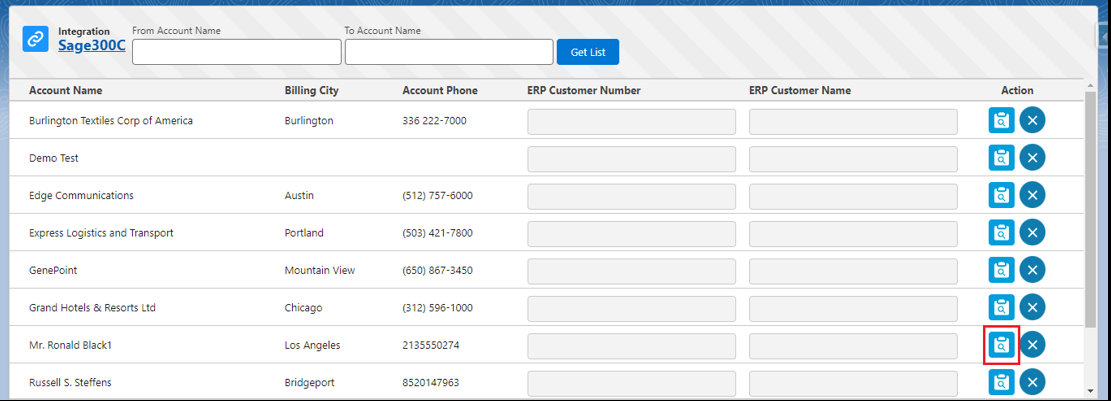
3. Select the Account which needs to be linked and then click the **blue clipboard icon** under the Action panel of the highlighted Account.

<figure><img src="https://794987320-files.gitbook.io/~/files/v0/b/gitbook-x-prod.appspot.com/o/spaces%2F-MCRVg-TYx3gVa2Tqtf_%2Fuploads%2FcIQMB3C7YlquGv0cpWfC%2Fimage.png?alt=media&#x26;token=baca9960-be81-4c7d-9390-15c2bc99f5c7" alt=""><figcaption></figcaption></figure>

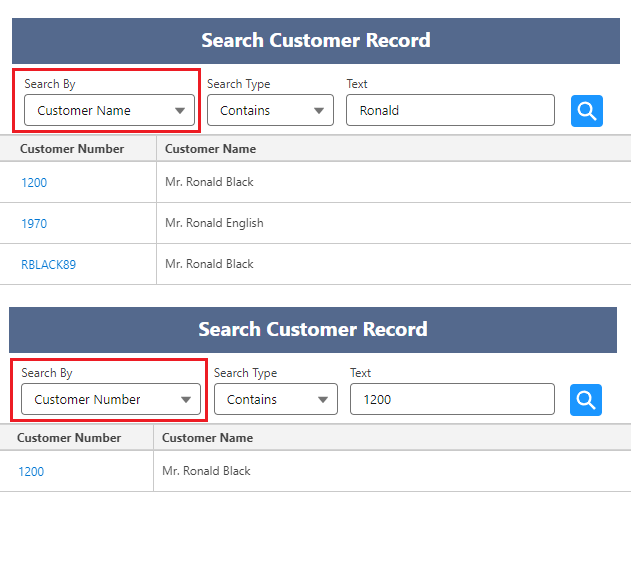
4. Users can now search by Customer Number and Customer Name. Click on the Customer Number (1200).

<figure><img src="https://794987320-files.gitbook.io/~/files/v0/b/gitbook-x-prod.appspot.com/o/spaces%2F-MCRVg-TYx3gVa2Tqtf_%2Fuploads%2FNS37y6kkWRwBYim06BMy%2Fimage.png?alt=media&#x26;token=88a536a4-0d26-4951-8dfe-f73a4d1b833f" alt=""><figcaption></figcaption></figure>

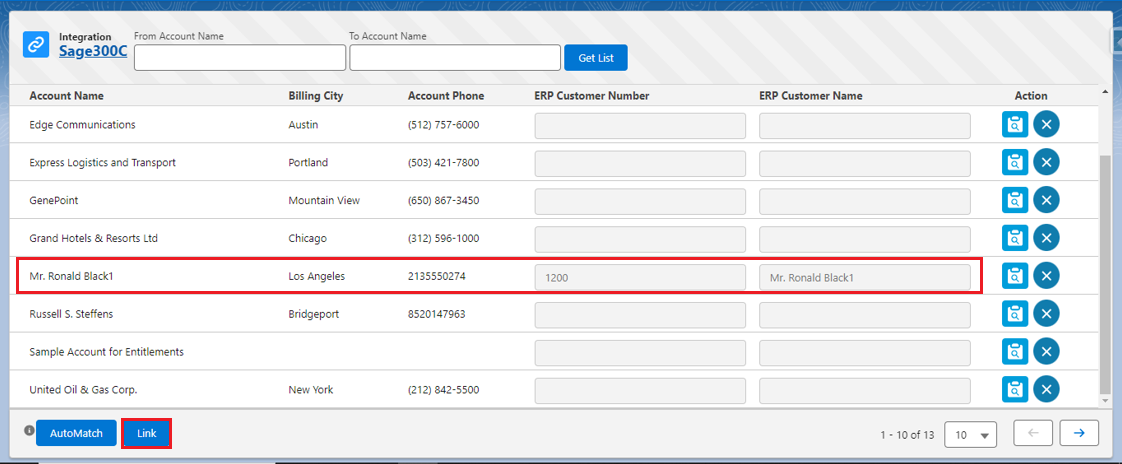
5. After selecting a Customer click the **Link** button to create a link between Sage and the Salesforce Account (a message pops up showing that the account has been linked successfully).

<figure><img src="https://794987320-files.gitbook.io/~/files/v0/b/gitbook-x-prod.appspot.com/o/spaces%2F-MCRVg-TYx3gVa2Tqtf_%2Fuploads%2FK0c6ROxFUDLYQbpUFeLE%2Fimage.png?alt=media&#x26;token=d0437692-ff37-4621-9a10-ba97859692fd" alt=""><figcaption></figcaption></figure>

6. A message pops up showing that the Account has been linked successfully.