# Address Creation and Promotion

To promote an Address the Account should be Promoted or Linked to Sage.

1. On the ERP Addresses and Fields tab for the Account, you can create a default shipping address by clicking the **Def. Ship Address** button.

<figure><img src="https://794987320-files.gitbook.io/~/files/v0/b/gitbook-x-prod.appspot.com/o/spaces%2F-MCRVg-TYx3gVa2Tqtf_%2Fuploads%2FgRd4OgFHMkXscwJ8Z2Ci%2Fimage.png?alt=media&#x26;token=ff5aa606-5b48-44d0-bea8-bb1dafd24179" alt=""><figcaption></figcaption></figure>

2. To promote the address, fill in all the details and click the **Save and Promote** button.

<figure><img src="https://794987320-files.gitbook.io/~/files/v0/b/gitbook-x-prod.appspot.com/o/spaces%2F-MCRVg-TYx3gVa2Tqtf_%2Fuploads%2Fpox2CJrs3YZNMeyddBFW%2Fimage.png?alt=media&#x26;token=5057d24b-43fc-4b28-b10a-58944587aaef" alt=""><figcaption></figcaption></figure>

### <mark style="color:red;">**Address Field Details**</mark> <a href="#address-details" id="address-details"></a>

<table><thead><tr><th width="292">Field</th><th>Description</th></tr></thead><tbody><tr><td>Address Code</td><td>For easy identification, the Address code should always be unique (two addresses for the Account cannot have same Address Code)</td></tr><tr><td>Is Default Ship-To-Address?</td><td>Do you want this to be the Default Address in Salesforce and Sage</td></tr><tr><td>Address Type</td><td>Is the new Address created a Billing or Shipping address</td></tr><tr><td>Address Name</td><td>Same as the Address Code, Address Name should also be unique</td></tr></tbody></table>

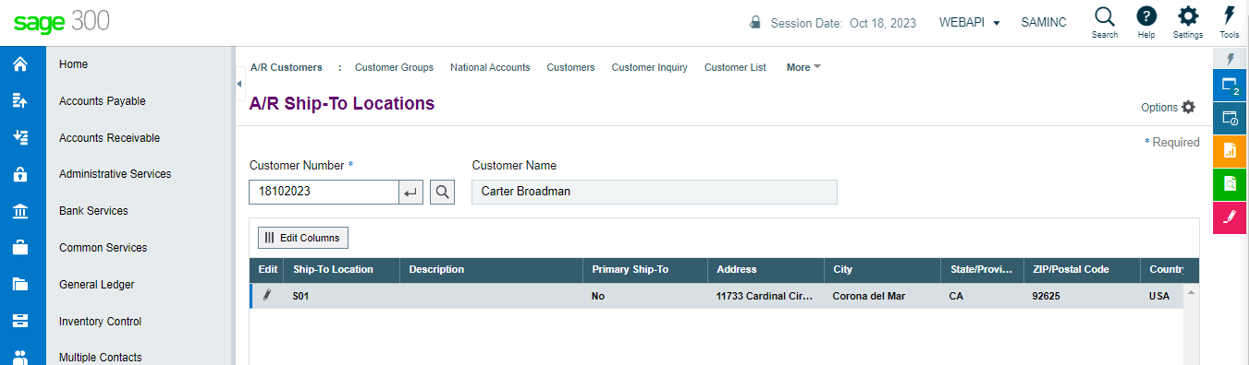
<figure><img src="https://794987320-files.gitbook.io/~/files/v0/b/gitbook-x-prod.appspot.com/o/spaces%2F-MCRVg-TYx3gVa2Tqtf_%2Fuploads%2FUzRDQAf2swCD6QCstkkr%2Fimage.png?alt=media&#x26;token=f402338e-a20a-469f-9227-c77ca36b97d9" alt=""><figcaption><p>Promoted address in Sage</p></figcaption></figure>

3. To view/edit the promoted shipping address click on the pencil icon under the Action panel to edit (bottom left).

<figure><img src="https://794987320-files.gitbook.io/~/files/v0/b/gitbook-x-prod.appspot.com/o/spaces%2F-MCRVg-TYx3gVa2Tqtf_%2Fuploads%2FV95WyzxdeVuL5YbvN1vm%2Fimage.png?alt=media&#x26;token=8cfaf6b4-37bd-4ac8-95be-6924b18f8ceb" alt=""><figcaption></figcaption></figure>

4. A new window will open displaying all the address details, update the details if needed and then click on the **Update** button to promote the address.
5. Here we have updated the Address line 3.

<figure><img src="https://794987320-files.gitbook.io/~/files/v0/b/gitbook-x-prod.appspot.com/o/spaces%2F-MCRVg-TYx3gVa2Tqtf_%2Fuploads%2F5LvpLAD78OwyvR36Jt6X%2Fimage.png?alt=media&#x26;token=5cb8b0d0-f5a3-4901-adcb-e191195d3a0e" alt=""><figcaption></figcaption></figure>

<figure><img src="https://794987320-files.gitbook.io/~/files/v0/b/gitbook-x-prod.appspot.com/o/spaces%2F-MCRVg-TYx3gVa2Tqtf_%2Fuploads%2FGxlFcJjtz8AXbjUb488C%2Fimage.png?alt=media&#x26;token=2a1d6f10-f5b9-4a9a-8456-8f0217a4bc4b" alt=""><figcaption><p><em>Updated Address in Sage 300C</em></p></figcaption></figure>

6. To create the default Billing Address, click on the Def. Bill Address button and then Save the changes. The Save button will promote the address to Sage 300C.

<figure><img src="https://794987320-files.gitbook.io/~/files/v0/b/gitbook-x-prod.appspot.com/o/spaces%2F-MCRVg-TYx3gVa2Tqtf_%2Fuploads%2F1IGX9Ev6lwUx7rTldsWf%2Fimage.png?alt=media&#x26;token=5cc95fb9-2d6a-4abb-be70-2debeb72b6e7" alt=""><figcaption><p>Billing Address in Salesforce</p></figcaption></figure>

<figure><img src="https://794987320-files.gitbook.io/~/files/v0/b/gitbook-x-prod.appspot.com/o/spaces%2F-MCRVg-TYx3gVa2Tqtf_%2Fuploads%2FYlpw9vsFcXm7Dbor8ORY%2Fimage.png?alt=media&#x26;token=d488b0a3-cc24-46f6-933d-836b93c5203e" alt=""><figcaption><p>Billing Address in Sage 300C</p></figcaption></figure>