> For the complete documentation index, see [llms.txt](https://docs.greytrix.com/llms.txt). Markdown versions of documentation pages are available by appending `.md` to page URLs; this page is available as [Markdown](https://docs.greytrix.com/gumu-salesforce-integration/sage300/gumu-tm-extension-installation.md).
# GUMU™ Extension Installation
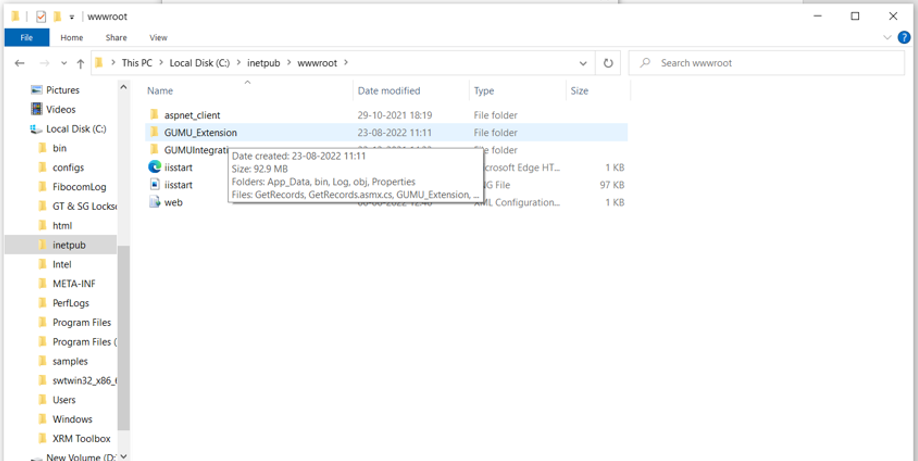
1. Download the GUMU Extension zip file and extract the file.
2. Paste the file into this path \[C:\inetpub\wwwroot].
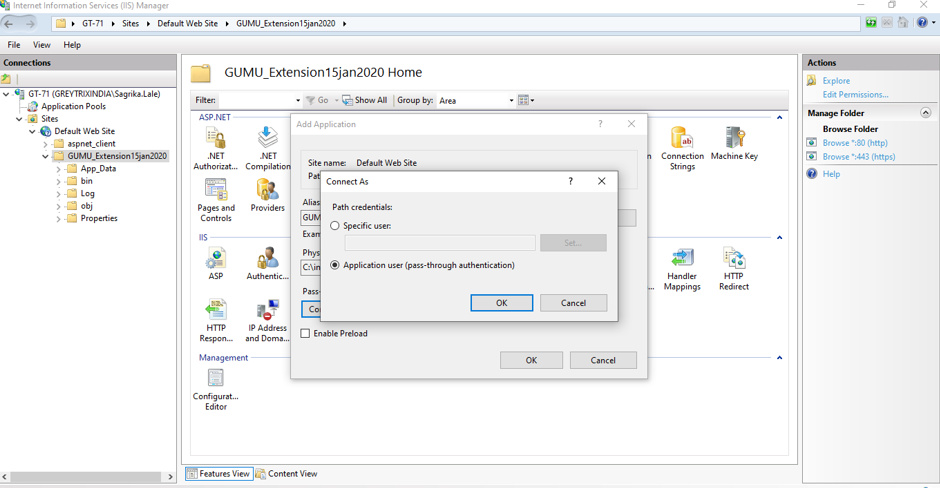
3. Open Internet Information Service (IIS) Manager and find GUMU Extension under the Default Web Site.
4. Right-click on the GUMU Extension and click on the Convert to Application option.
5. Then click on Connect as -> Application User option -> Ok.
6. Next, click on Ok -> Click on Test Settings.
7. Edit PermissionsSecurity then give Full Control to Users and IIS Users.
For Users
For IIS Users
8. Click on **Browse\*:80 (HTTP) hyperlink** it will redirect to Localhost.
9. Check with https<\>, it should get accessed externally. Replace the domain name with your domain name.
Browse*:80 (HTTP)
10. Click on the GetRecords.asmx.
11. Navigate to the Salesforce Org and switch to Classic mode. Click on the + icon and search for Entity Ext Prop.
12. Click on New. Fill in the details as mentioned below:
**Name**: oepricefinders
**Active**: true
**Config**: datasource=GREY071\SQL2017 (Specify the SQL Name) ;Database=SAMLTD (Database Name);integrated security=false;User id=sa;password=sa\@1234 (SQL details)
**ERP Count Query**: select count(\*) from(select QTYONHAND,LOCATION,ICPRICP.\* from ICPRICP left join ICILOC on ICILOC.ITEMNO=ICPRICP.ITEMNO WHERE DPRICETYPE IN (1) AND UNITPRICE > 0)T1
**ERP Query**: select \* from (select QTYONHAND,LOCATION,ICPRICP.\* from ICPRICP left join ICILOC on ICILOC.ITEMNO=ICPRICP.ITEMNO WHERE DPRICETYPE IN (1) AND UNITPRICE > 0)T1
**Integration Key**: org integration key
**OrderBy:** ITEMNO
**URL:**
13. Once you click on the Save button, the following screen appears.
14. Click on the URL, it’ll navigate to a new page, and then click on the GetTableData link.
15. If the following page appears, it means you have installed the GUMU™ Extension successfully.