# GUMU Extension Installation

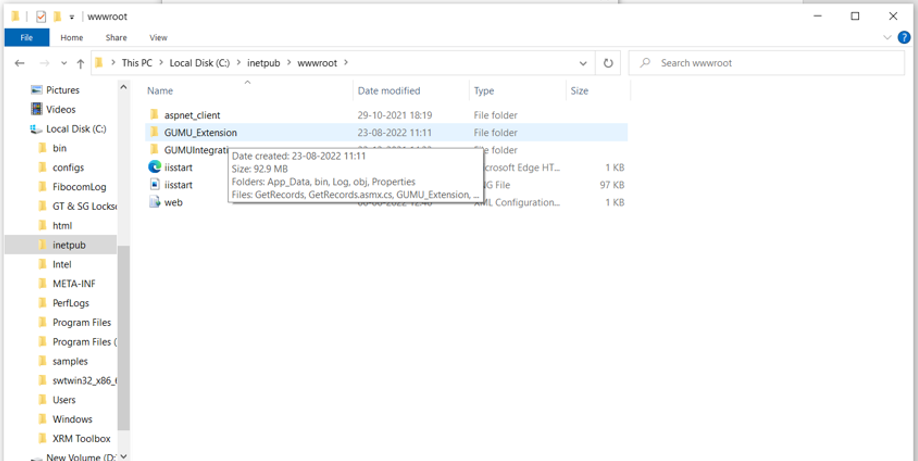
1. Download the GUMU Extension zip file and extract the file.
2. Paste the file into this path \[C:\inetpub\wwwroot].

<figure><img src="https://794987320-files.gitbook.io/~/files/v0/b/gitbook-x-prod.appspot.com/o/spaces%2F-MCRVg-TYx3gVa2Tqtf_%2Fuploads%2F8hAuhiu7AQGJW4zLdQnx%2F1.png?alt=media&#x26;token=c7f599ea-b4cd-4a7a-8e8c-4e2191838ef4" alt=""><figcaption></figcaption></figure>

3. Open Internet Information Service (IIS) Manager and find GUMU Extension under the Default Web Site.

<figure><img src="https://794987320-files.gitbook.io/~/files/v0/b/gitbook-x-prod.appspot.com/o/spaces%2F-MCRVg-TYx3gVa2Tqtf_%2Fuploads%2FB6PnXN5tannIT1w7i5oW%2F2.png?alt=media&#x26;token=8e664cbd-9192-4447-8ae5-2b2afdf49670" alt=""><figcaption></figcaption></figure>

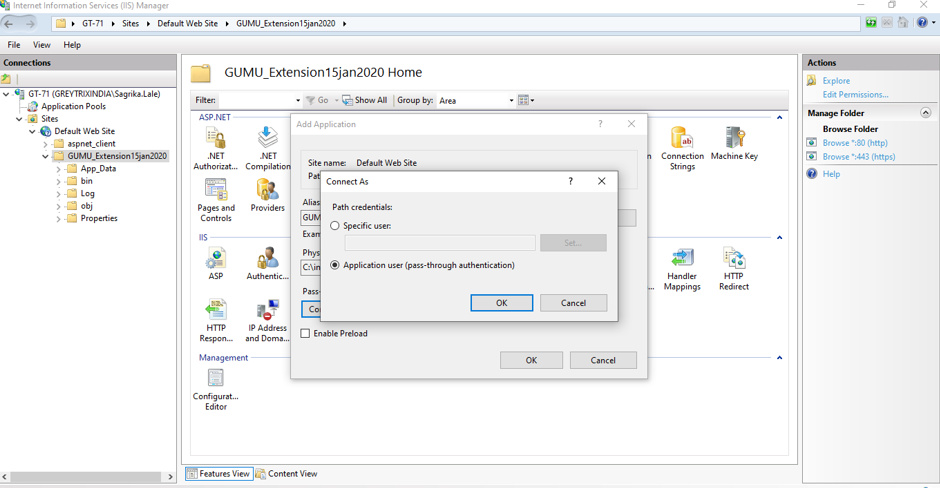
4. Right-click on the GUMU Extension and click on the Convert to Application option.
5. Then click on Connect as -> Application User option -> Ok.

<figure><img src="https://794987320-files.gitbook.io/~/files/v0/b/gitbook-x-prod.appspot.com/o/spaces%2F-MCRVg-TYx3gVa2Tqtf_%2Fuploads%2FVYdTxdDJegwNYw9dyc5p%2F3.png?alt=media&#x26;token=192428c5-2b9a-403e-aea0-8c831794a5eb" alt=""><figcaption></figcaption></figure>

6. Next, click on Ok -> Click on Test Settings.

<figure><img src="https://794987320-files.gitbook.io/~/files/v0/b/gitbook-x-prod.appspot.com/o/spaces%2F-MCRVg-TYx3gVa2Tqtf_%2Fuploads%2FE9JnAQwDdoff0I02O6q5%2F4.png?alt=media&#x26;token=e7bbfe7b-2554-46ff-ba53-806ce73d542a" alt=""><figcaption></figcaption></figure>

7. Edit PermissionsSecurity then give Full Control to Users and IIS Users.

<figure><img src="https://794987320-files.gitbook.io/~/files/v0/b/gitbook-x-prod.appspot.com/o/spaces%2F-MCRVg-TYx3gVa2Tqtf_%2Fuploads%2F4JZLY8RhMmyGQAb2bvMx%2F5.png?alt=media&#x26;token=7ac4a1a8-ffb6-45f0-aefa-8bd50115c76c" alt=""><figcaption></figcaption></figure>

<figure><img src="https://794987320-files.gitbook.io/~/files/v0/b/gitbook-x-prod.appspot.com/o/spaces%2F-MCRVg-TYx3gVa2Tqtf_%2Fuploads%2F6N26KYCyKF6vnqauqxez%2F6.png?alt=media&#x26;token=98f166b5-cbe6-450b-bd08-f6dbfc240a95" alt=""><figcaption><p>For Users</p></figcaption></figure>

<figure><img src="https://794987320-files.gitbook.io/~/files/v0/b/gitbook-x-prod.appspot.com/o/spaces%2F-MCRVg-TYx3gVa2Tqtf_%2Fuploads%2FiHQsqHpsPWB1Tl96p8yj%2F7.png?alt=media&#x26;token=b6e75fb7-e901-4589-b41e-f15362a86b30" alt=""><figcaption><p>For IIS Users</p></figcaption></figure>

8. Click on **Browse\*:80 (HTTP) hyperlink** it will redirect to Localhost.
9. Check with https<\<DomainName>>, it should get accessed externally. Replace the domain name with your domain name.

<figure><img src="https://794987320-files.gitbook.io/~/files/v0/b/gitbook-x-prod.appspot.com/o/spaces%2F-MCRVg-TYx3gVa2Tqtf_%2Fuploads%2FyTbFBMAUf90pn4xW32b6%2F8.png?alt=media&#x26;token=3d0e36fb-88a2-4286-b687-d3a7a8acc1d2" alt=""><figcaption><p> <strong>Browse*:80 (HTTP)</strong></p></figcaption></figure>

<figure><img src="https://794987320-files.gitbook.io/~/files/v0/b/gitbook-x-prod.appspot.com/o/spaces%2F-MCRVg-TYx3gVa2Tqtf_%2Fuploads%2FLjWSAg9sUsgkYbRGNDv0%2F9.png?alt=media&#x26;token=65ff6c4d-984c-4392-8c59-4e4240f47ec6" alt=""><figcaption></figcaption></figure>

10. Click on the GetRecords.asmx.

<figure><img src="https://794987320-files.gitbook.io/~/files/v0/b/gitbook-x-prod.appspot.com/o/spaces%2F-MCRVg-TYx3gVa2Tqtf_%2Fuploads%2FMrtW8IY1tLnD8oshNdmZ%2F10.png?alt=media&#x26;token=55b8a357-fba1-46c7-a976-71494558c92c" alt=""><figcaption></figcaption></figure>

11. Navigate to the Salesforce Org and switch to Classic mode. Click on the + icon and search for Entity Ext Prop.

<figure><img src="https://794987320-files.gitbook.io/~/files/v0/b/gitbook-x-prod.appspot.com/o/spaces%2F-MCRVg-TYx3gVa2Tqtf_%2Fuploads%2FLjYJAhPrwYX8XN1oFVNp%2F11.png?alt=media&#x26;token=b22cdc8b-ffdd-4ffa-b950-3f135d236fcc" alt=""><figcaption></figcaption></figure>

12. Click on New. Fill in the details as mentioned below:

**Name**: oepricefinders

**Active**: true

**Config**: datasource=GREY071\SQL2017 (Specify the SQL Name) ;Database=SAMLTD (Database Name);integrated security=false;User id=sa;password=sa\@1234 (SQL details)

**ERP Count Query**: select count(\*) from(select QTYONHAND,LOCATION,ICPRICP.\* from ICPRICP left join ICILOC on ICILOC.ITEMNO=ICPRICP.ITEMNO WHERE DPRICETYPE IN (1) AND UNITPRICE > 0)T1

**ERP Query**: select \* from (select QTYONHAND,LOCATION,ICPRICP.\* from ICPRICP left join ICILOC on ICILOC.ITEMNO=ICPRICP.ITEMNO WHERE DPRICETYPE IN (1) AND UNITPRICE > 0)T1

**Integration Key**: org integration key

**OrderBy:** ITEMNO

**URL:** <http://49.248.14.237:8233/GUMU_Extension/GetRecords.asmx> <http://20.9.12.15/GUMU_Extension2023/GetRecods.asmx>

13. Once you click on the Save button, the following screen appears.

<figure><img src="https://794987320-files.gitbook.io/~/files/v0/b/gitbook-x-prod.appspot.com/o/spaces%2F-MCRVg-TYx3gVa2Tqtf_%2Fuploads%2FRA75gIxZ2CXjOtJIvY3x%2F12.png?alt=media&#x26;token=4862c010-ecaf-44e1-afad-27a38dcae016" alt=""><figcaption></figcaption></figure>

14. Click on the URL, it’ll navigate to a new page, and then click on the GetTableData link.

<figure><img src="https://794987320-files.gitbook.io/~/files/v0/b/gitbook-x-prod.appspot.com/o/spaces%2F-MCRVg-TYx3gVa2Tqtf_%2Fuploads%2FZaRNsJCBgZSvy6uP8clW%2F13.png?alt=media&#x26;token=4e67f41a-e066-45d4-be95-3e430bd9cf70" alt=""><figcaption></figcaption></figure>

15. If the following page appears, it means you have installed the GUMU™ Extension successfully.
<figure><img src="https://794987320-files.gitbook.io/~/files/v0/b/gitbook-x-prod.appspot.com/o/spaces%2F-MCRVg-TYx3gVa2Tqtf_%2Fuploads%2F5rK54K28KTx7sOxttbHm%2Fimage.png?alt=media&#x26;token=85e46f02-cfc9-45d9-a42b-48f05e47615f" alt=""><figcaption></figcaption></figure>