# Address Creation and Promotion

To promote an Address the Account should be Promoted or Linked to Sage 100 first.

1. On the ERP Addresses and Fields tab for the Account, you can create a default shipping address by clicking the **Def. Ship Address** button.

<figure><img src="/files/cx3DvDW2W0VaWrqaGXeS" alt=""><figcaption></figcaption></figure>

2. To promote the address, fill in all the details and click the **Save and Promote** button.

<figure><img src="/files/XyEgLgAojmfoj0lo1AeQ" alt=""><figcaption></figcaption></figure>

### <mark style="color:red;">**Address Details**</mark>

<table><thead><tr><th width="275">Field</th><th>Description</th></tr></thead><tbody><tr><td>Address Code</td><td>For easy identification, the Address code should always be unique (two addresses for the Account cannot have same Address Code)</td></tr><tr><td>Is Default Ship-To-Address?</td><td>Do you want this to be the Default Address in Salesforce and Sage</td></tr><tr><td>Address Type</td><td>Is the new Address created a Billing or Shipping address</td></tr><tr><td>Address Name</td><td>Same as the Address Code, Address Name should also be unique</td></tr></tbody></table>

<figure><img src="/files/y1o27y1lU0V5HYDqCXeG" alt=""><figcaption><p>Promoted address in Sage 100</p></figcaption></figure>

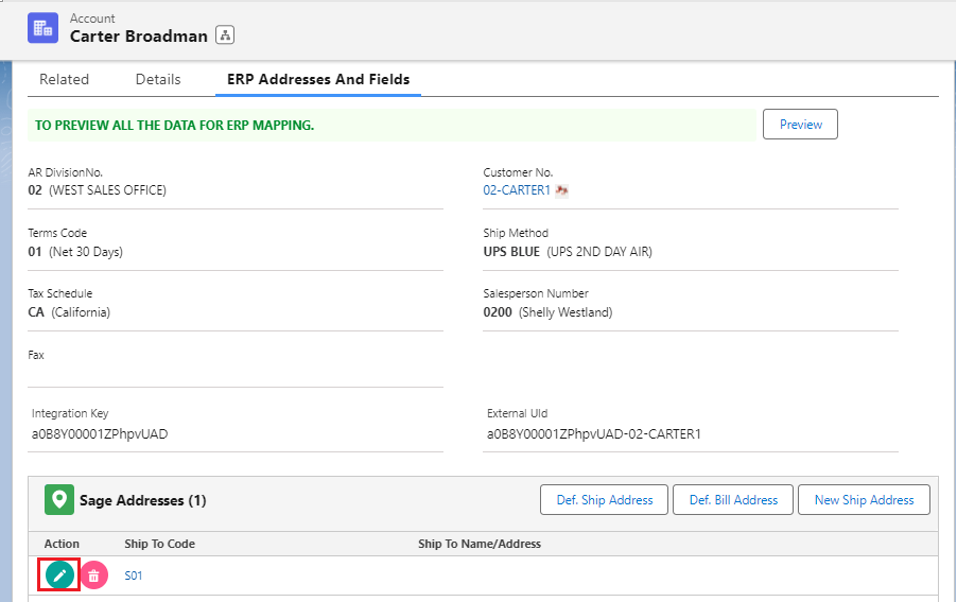
3. To view/edit the promoted shipping address click on the pencil icon under the Action panel to edit (bottom left).

<figure><img src="/files/t1T1kdJ7npPMLcZCyyoL" alt=""><figcaption></figcaption></figure>

4. A new window will open displaying all the address details, update the details if needed and then click on the **Update** button to promote the address.
5. Here we have updated the Address line 3.

<figure><img src="/files/kEi9PSQN6NusAz3YyzLD" alt=""><figcaption><p>Updated Address in Salesforce</p></figcaption></figure>

<figure><img src="/files/pm6nOTzR4zkDYt4Vve7u" alt=""><figcaption><p>Updated Address in Sage 100</p></figcaption></figure>

5. To create a default Billing Address click on the **Def. Bill Address** button and **Save** (the **Update** button will promote the address to Sage 100).

<figure><img src="/files/70lx4d6CVbyKSpJPKSf5" alt=""><figcaption><p>Billing Address in Salesforce</p></figcaption></figure>

<figure><img src="/files/IhZ12Ny8lVTtPA8D327r" alt=""><figcaption><p>Billing Address in Sage 100</p></figcaption></figure>


---

# Agent Instructions: Querying This Documentation

If you need additional information that is not directly available in this page, you can query the documentation dynamically by asking a question.

Perform an HTTP GET request on the current page URL with the `ask` query parameter:

```
GET https://docs.greytrix.com/gumu-salesforce-integration/sage100/transaction/address-creation-and-promotion.md?ask=<question>
```

The question should be specific, self-contained, and written in natural language.
The response will contain a direct answer to the question and relevant excerpts and sources from the documentation.

Use this mechanism when the answer is not explicitly present in the current page, you need clarification or additional context, or you want to retrieve related documentation sections.