# Contact Creation and Promotion

**Note:** To promote Contacts the associated Account must be Linked/Promoted to Sage Intacct.

1. Select the Account for which you wish to create and promote a Contact from Salesforce to Sage (here we are going to create a Contact for the Linked Account: Richardson Textiles).
2. Click the **Related** tab on the Salesforce Account Page, scroll down to the Contacts section, and click the **New** button to create a new Contact for the Account.
3. Once you have filled out all of the required information check the **Is Primary Contact?** checkbox and then click **Save** to store the newly created record (this will promote the contact).

<figure><img src="https://794987320-files.gitbook.io/~/files/v0/b/gitbook-x-prod.appspot.com/o/spaces%2F-MCRVg-TYx3gVa2Tqtf_%2Fuploads%2FfdPuoGcASA08UHVwmMVP%2Fimage.png?alt=media&#x26;token=f95d8a2f-6086-40f0-ad02-8805f00bde89" alt=""><figcaption></figcaption></figure>

<figure><img src="https://794987320-files.gitbook.io/~/files/v0/b/gitbook-x-prod.appspot.com/o/spaces%2F-MCRVg-TYx3gVa2Tqtf_%2Fuploads%2FFoaC88o92WUtsUNrGUqD%2Fimage.png?alt=media&#x26;token=75cfd20c-a7e7-4efa-905c-4477c639ee87" alt=""><figcaption><p>Contact in Salesforce</p></figcaption></figure>

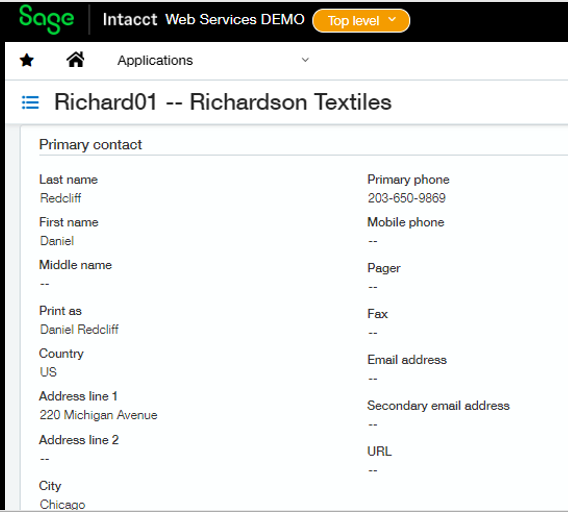
<figure><img src="https://794987320-files.gitbook.io/~/files/v0/b/gitbook-x-prod.appspot.com/o/spaces%2F-MCRVg-TYx3gVa2Tqtf_%2Fuploads%2FwwVr45h5tmMU3aC8JvOT%2Fimage.png?alt=media&#x26;token=e738399d-5028-4b94-824c-a270e22a5925" alt=""><figcaption><p>Primary Contact in Sage Intacct</p></figcaption></figure>

**Note:** Address (Bill to and Ship to) will be promoted as Contact in Sage Intacct.

<figure><img src="https://794987320-files.gitbook.io/~/files/v0/b/gitbook-x-prod.appspot.com/o/spaces%2F-MCRVg-TYx3gVa2Tqtf_%2Fuploads%2FQZ5ZhZxKJyIlVUOKF1nn%2Fimage.png?alt=media&#x26;token=7923e81b-8015-4899-94ef-7fa67d3d29da" alt=""><figcaption></figcaption></figure>

<figure><img src="https://794987320-files.gitbook.io/~/files/v0/b/gitbook-x-prod.appspot.com/o/spaces%2F-MCRVg-TYx3gVa2Tqtf_%2Fuploads%2F7zpwJIXTakENITvipE0f%2Fimage.png?alt=media&#x26;token=aeef9b8b-75d6-4ded-9377-e3baed181ff4" alt=""><figcaption><p>Bill to address in Sage Intacct</p></figcaption></figure>

4. Creating a new Contact and promoting it as a Ship to address in Sage Intacct.

<figure><img src="https://794987320-files.gitbook.io/~/files/v0/b/gitbook-x-prod.appspot.com/o/spaces%2F-MCRVg-TYx3gVa2Tqtf_%2Fuploads%2FckGMfeA8v3Cbi4EfhbVk%2Fimage.png?alt=media&#x26;token=b68883cc-38df-404a-8c29-dcd961edf803" alt=""><figcaption></figcaption></figure>

<figure><img src="https://794987320-files.gitbook.io/~/files/v0/b/gitbook-x-prod.appspot.com/o/spaces%2F-MCRVg-TYx3gVa2Tqtf_%2Fuploads%2FS4nvRD7OY4LNjao6wsYA%2Fimage.png?alt=media&#x26;token=0c3f2b3b-fd97-40b6-8357-6ffe68143e11" alt=""><figcaption><p>Ship to address in Sage</p></figcaption></figure>