> For the complete documentation index, see [llms.txt](https://docs.greytrix.com/llms.txt). Markdown versions of documentation pages are available by appending `.md` to page URLs; this page is available as [Markdown](https://docs.greytrix.com/gumu-salesforce-integration/sage-intacct-1/user-guide/promotion/promote-order.md).
# Promote Order
Below are the steps to verify the Order Promote functionality.
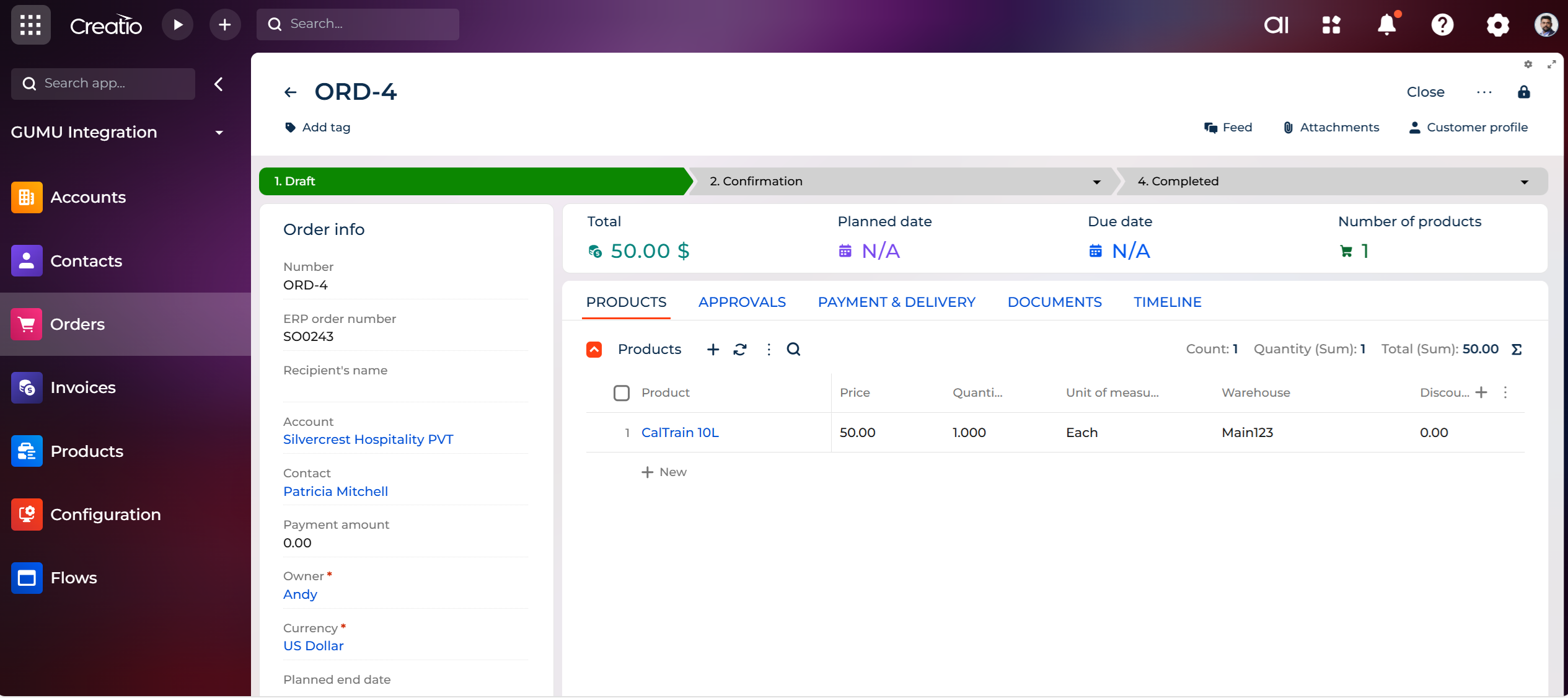
Create “**Order**” and add **Products** in an Order. Click on the “**Promote to Sage**” button.
Once a record is promoted into the Sage Intacct system, a unique ID “**ERP Order Number**” will be updated in the Creatio system to ensure a linked record in both systems. The unique ID will be used to update the record in both systems during subsequent updates.
In the above example, contact “**ERP Order Number**” will be set as “**SO0243**” and will be visible in Sage Intacct ERP.
In Sage Intacct ERP, select “**Sales Order**” option by navigating from Applications | Order Entry | Sales Order as shown below.
Put “**ERP Order Number**” in the "**Document Number"** field as shown below and click on the Enter button of keyboard. On click of enter button, Order Promoted from Creatio will be visible here.
Click on the **View** hyperlink to review the Sales Order details.
Order promotion is like account promotion, with the primary difference being that order promotion is a one-time action. Once an order record is promoted, it cannot be promoted again.
Once a record is promoted into the Sage Intacct system, a unique ID will be updated in the Creatio system to ensure a linked record in both systems.