> For the complete documentation index, see [llms.txt](https://docs.greytrix.com/llms.txt). Markdown versions of documentation pages are available by appending `.md` to page URLs; this page is available as [Markdown](https://docs.greytrix.com/gumu-salesforce-integration/sage-intacct-1/user-guide/authentication-using-gumu-tm-login-credentials.md).
# Authentication using GUMU™ Login Credentials
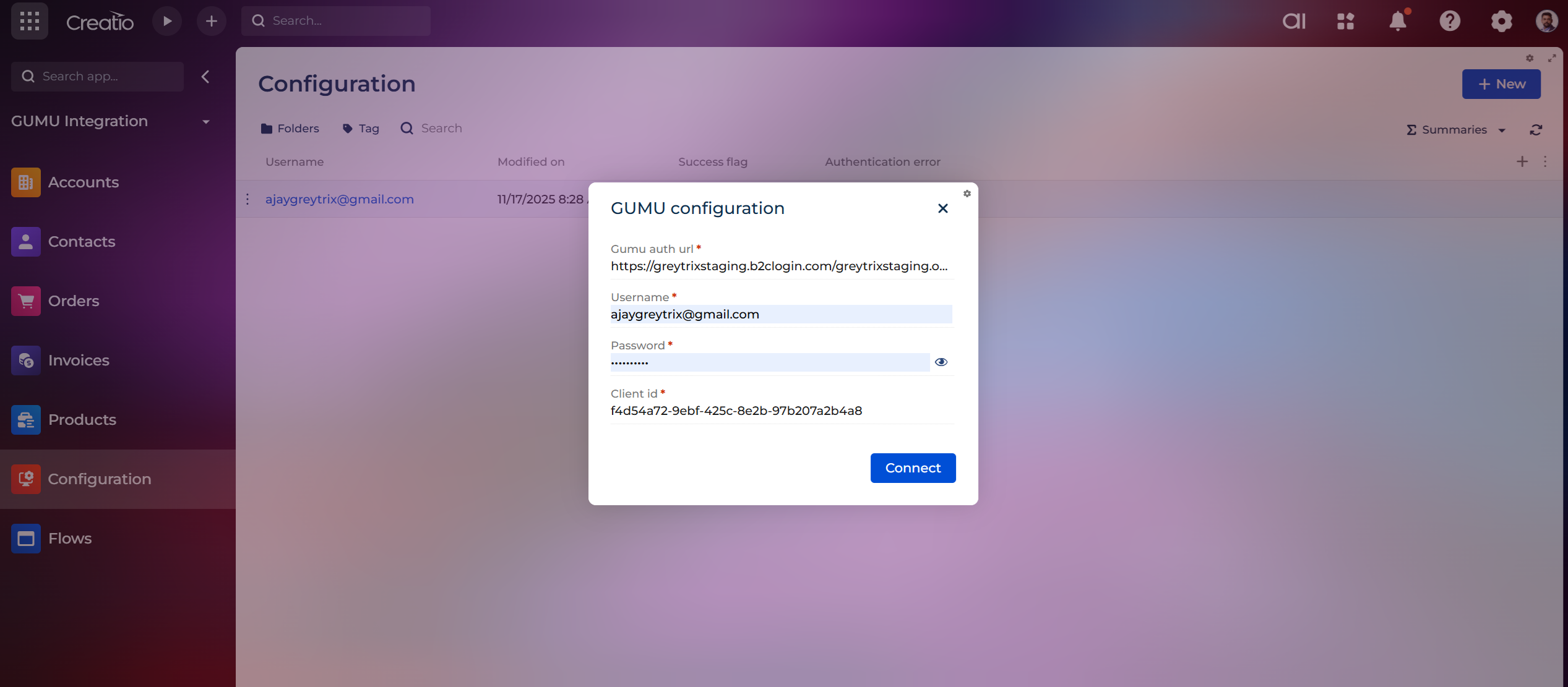
Click on the **Configuration** option and Click on the **New** button to add a new configuration. Enter the required connection details.
***Note:***\
*These details will be provided by Greytrix to the client.*
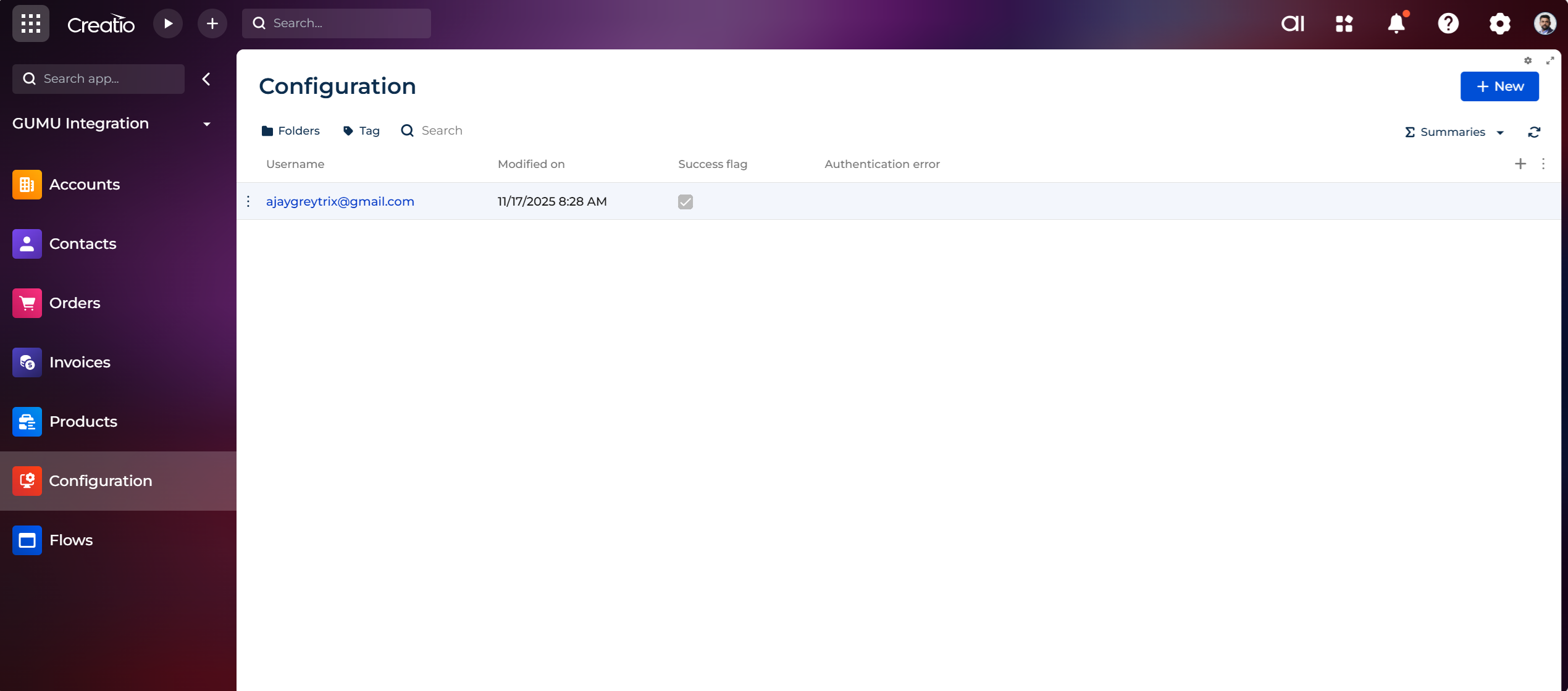
Click on **Save** button to authenticate details. If the connection is successful then "**Success Flag**" will be checked into Configuration grid. If there is any error with connection, then Success Flag will NOT be checked and Authentication error will be displayed into “**Authentication error**” column.
**Note:**\
If a user faces any issue while connecting to GUMU or syncing the process list, make sure the **“Default Value”** is set for **“GUMU Subscription ID”** in **System Settings**.
The **“Default Value”** is a unique number that the user receives after successfully subscribing to GUMU.
To add the GUMU Subscription ID, follow these steps:
1. Go to **System Settings** and Search for **“GUMU Subscription ID.”**
2. Open the settings and enter the value in the **“Default Value”** field, and click **Save**.
Once done, refresh the Creatio screen and try the process again.