# GUMU™ Customizer

Using GUMU Customizer Sage CRM administrators can create their own dynamic Inquiry screens, and add/remove fields in the new inquiry screens as per their requirements. Also, they can select the context/Entity, under which they want to display a new inquiry tab. For creating the Inquiry screen, the user will need to have Basic knowledge of Sage X3 web services. Or else Sage CRM Administrator can work with the Sage X3 administrator to accomplish this.&#x20;

Below are the pre-requisites for Customizer:

* Web service objects/Subprograms required for creating an inquiry must be first created in Sage X3.
* Sync all the Web services objects and subprogram lists using the sync dropdown feature.

<figure><img src="/files/2mJknC9bvKYDisXR4oH2" alt=""><figcaption></figcaption></figure>

For creating a new inquiry user needs to follow the below steps.&#x20;

1. The first user needs to create a List of Pages with a filter screen (If required ).
2. Then on click of the Quote number hyperlink, it should display Quote details of a particular Quote.

   * Go to Administration -> Sage  X3 –> GUMU Customizer à Click New Button

   <figure><img src="/files/QNybsWAfpD6LThNJz6Ld" alt=""><figcaption></figcaption></figure>

<figure><img src="/files/QEq3n5rZ0ZOndq82cxyS" alt=""><figcaption></figcaption></figure>

* Enter values in the Inquiry Header fields and click on the save button.\
  Below are the fields and their description:

  <table data-header-hidden><thead><tr><th width="221"></th><th></th></tr></thead><tbody><tr><td>Fields</td><td>Description</td></tr><tr><td>Name</td><td>Name of the Inquiry. This name will be the name of the GUMU tab which will be created.</td></tr><tr><td>Description</td><td>Short description of the inquiry</td></tr><tr><td>Context</td><td>Specify the context/Entity under which inquiry will be created.</td></tr><tr><td>Type</td><td><p>The user can select either of the below-mentioned types. Depending upon the type selected, it will filter the Entity name dropdown.<br>1. Sub-Program: this will create grid/list page. For Sub-Program, you will have to check Create Tab checkbox</p><p>2.  Object: this will create details page.</p></td></tr><tr><td>Folder Name</td><td>This drop down contains Sage X3 folder name which for which you have Configured GUMU</td></tr><tr><td>Entity Name</td><td>This drop down contains all the entity name which are present in Sage X3.</td></tr></tbody></table>

<figure><img src="/files/M3akFv6107aPRygHd960" alt=""><figcaption></figcaption></figure>

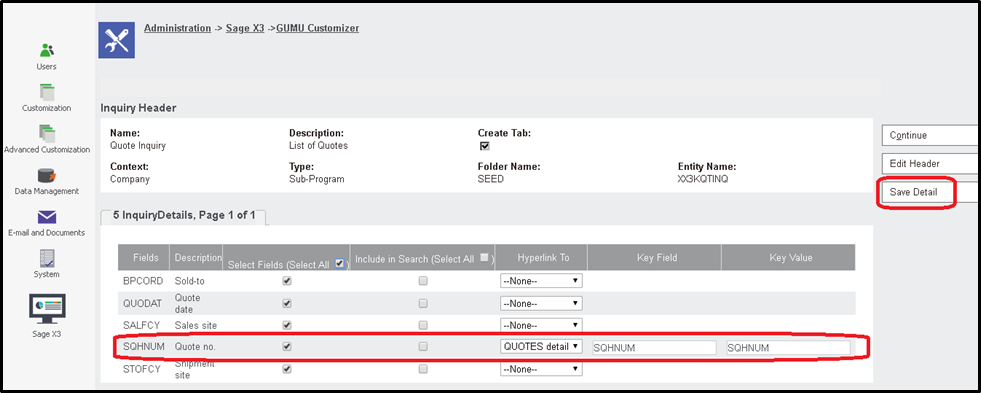
* After saving the Inquiry header, the details screen will be displayed. Using this detail screen users can design their Inquiry page as per their requirements.

  <figure><img src="/files/lViB1qGZfW3jf40qcIu9" alt=""><figcaption></figcaption></figure>

Below are the fields and their description:

<table data-header-hidden><thead><tr><th width="259"></th><th></th></tr></thead><tbody><tr><td>Fields</td><td>Description</td></tr><tr><td> Fields</td><td>Name of the field in Sage X3</td></tr><tr><td> Description</td><td>The caption of the field in Sage X3</td></tr><tr><td> Select</td><td>Select all those fields which user wants to display on inquiry.</td></tr><tr><td> Include in Search</td><td>If this checkbox is checked, then filter screen will be created on inquiry screen this field added in the screen.</td></tr><tr><td>Hyperlink To</td><td>The field will be hyperlinked to the selected Subprogram or object</td></tr><tr><td>Key Field</td><td>In the Key field, enter the name of the column on which basis you want to filter. In case you want to add the filter for Multiple Column then you will have to add it as follow Column1:column2:column3<br>Please, note that you can add value into this field only if you elect subprogram in Hyperlink to the field.<br>If you select the object it will automatically load the value into this field and will be read-only.</td></tr><tr><td>Key Value</td><td><p>In this field, enter the name of the column for which you want to pass the value to fetch the record. This should be the column of object/subprogram for which you are creating Inquiry. There can be 3 ways in which the user can pass this key value:<br>Single key value: pass only a single column name.</p><p>  Multiple Key Value: if the user wants to pass multiple key values, then it can be   done as follow</p><p> value1:value2:  value3</p><p> Static Value: You can also pass the static values. In this case, the user will have to pass the  value   by prefix as ‘~’<br> ~value1: ~value2:~value3</p></td></tr></tbody></table>

\
Below is an example of the Inquiry screen created using Customizer:

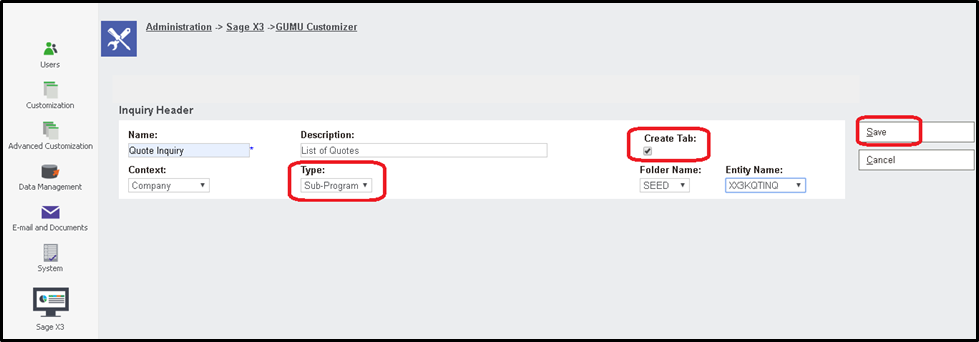
Below is an example of creating a Quote inquiry page using GUMU Customizer. As per this example, we will be creating an inquiry screen that will have -

&#x20;   a) List of all the Quotes from Sage X3.

&#x20;   b) Hyperlink on Quote number column to view all the details for a Quote on click of it.

For this, please follow the below steps.

&#x20;   a) Go to Administration -> Sage X3 –> GUMU Customizer.

&#x20;   b) Click on the Button. You will navigate to the below screen. Fill details below:

<table data-header-hidden><thead><tr><th width="276"></th><th></th></tr></thead><tbody><tr><td>  Field</td><td> Value</td></tr><tr><td>Name</td><td>Quote Inquiry</td></tr><tr><td>Description</td><td>List of Quotes</td></tr><tr><td>Create Tab</td><td>Checked</td></tr><tr><td>Context</td><td>Company</td></tr><tr><td>Type</td><td>Sub-Program</td></tr><tr><td>Entity Name</td><td><p>XX3KQTINQ (This sub Program contains the list of all Quotes. This subprogram is created when GUMU patches are installed on X3).</p><p>Note  - This webservice(i.e. XX3KQTINQ)  is not get installed by Patch. For example purpose, we have created a webservice in Sage X3 and run the Sync dropdown.</p></td></tr></tbody></table>


---

# Agent Instructions: Querying This Documentation

If you need additional information that is not directly available in this page, you can query the documentation dynamically by asking a question.

Perform an HTTP GET request on the current page URL with the `ask` query parameter:

```
GET https://docs.greytrix.com/gumu-sage-crm-integration/sage-x3/user-guide/sage-crm-side-gumu-administration/gumu-customizer.md?ask=<question>
```

The question should be specific, self-contained, and written in natural language.
The response will contain a direct answer to the question and relevant excerpts and sources from the documentation.

Use this mechanism when the answer is not explicitly present in the current page, you need clarification or additional context, or you want to retrieve related documentation sections.