> For the complete documentation index, see [llms.txt](https://docs.greytrix.com/llms.txt). Markdown versions of documentation pages are available by appending `.md` to page URLs; this page is available as [Markdown](https://docs.greytrix.com/gumu-sage-crm-integration/sage-x3/installation-guide/sage-x3-patches-installation.md).
# Sage X3 Patches Installation
This will create Web service objects and sub-programs in Sage X3 which will be used by Sage CRM for reading and writing data into Sage X3. There are 2 patches that need to be installed in Sage X3.
* Sage CRM side Sage X3 Patch: - This patch installs web service objects and program which is used by CRM to read and write data into Sage X3.
* ERP side Sage X3 patch: - This patch installs the GUMU™ integration module in Sage X3 which is used for real-time updates from Sage X3 to Sage CRM.
**Sage CRM side Sage X3 patch installation**
**For Sage X3 v6.5**: user can find the patches in the following path and just follow the steps that are provided below. C:\Program Files (x86)\Greytrix\\*GUMU for Sage CRM - Sage X3\Patches\V6.5* (Assuming your GUMU is installed in C drive). The patch name is "SRC\_P\_XX3K\_GUMUCRMX3\_2.0.0”
**For Sage X3 v7 and above:** the user can find the patches in the following path and just follow the steps that are provided below. C:\Program Files (x86)\Greytrix\\*GUMU for Sage CRM - Sage X3\Patches\V7 OR Above* (Assuming your GUMU is installed in C drive). The patch name is “SRC\_P\_XX3K\_GUMUCRMX3\_2.0.0”
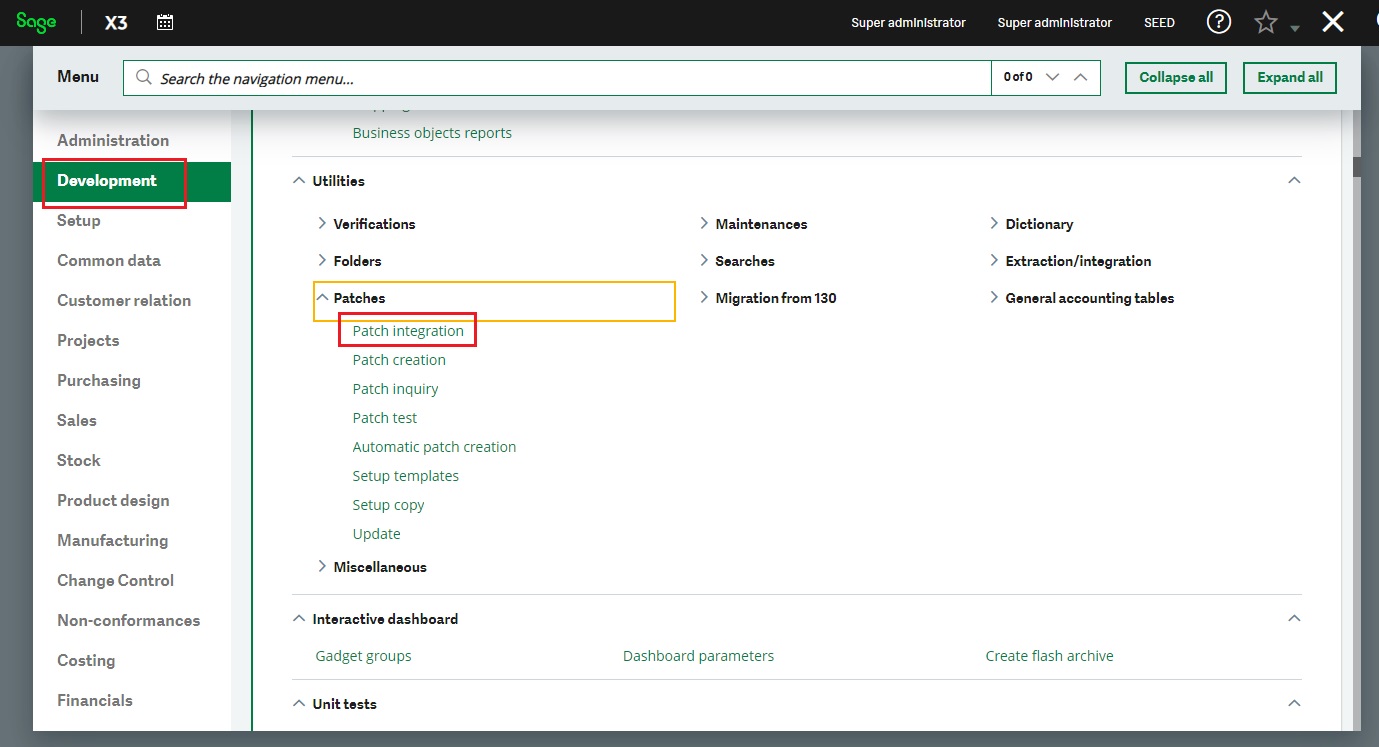
1. Login to Sage X3. Launch the patch integration utility from Development --> Utilities --> Patches.
2. Select the Client option to load the patch.
3. Now check the Patch integration checkbox.
4. Check the Link synchronization checkbox.
5. Uncheck the Deferred validation checkbox
6. Add/Remove the folders as required to install the patches.
7. Note: Never select the X3 folder (root folder) when installing this patch.
8. Finally, click OK.
9. Enter the location of the patch.
10. It will install the patch changes for all the selected folders.
11. Exit Sage X3 and Re-Login.
**Sage ERP side Sage X3 patch installation**
**For Sage X3 v6.5**: user can find the patches in the following path and just follow the steps that are provided below. C:\Program Files (x86)\Greytrix\\*GUMU for Sage CRM - Sage X3\Patches\V6.5* (Assuming your GUMU is installed in C drive). The patch name is "SRC\_P\_XX3K\_GUMUERPX3\_PE\_2.0.0”
**For Sage X3 v7 and above:** the user can find the patches in the following path and just follow the steps that are provided below. C:\Program Files (x86)\Greytrix\\*GUMU for Sage CRM - Sage X3\Patches\V7 OR Above* (Assuming your GUMU is installed in C drive). The patch name is “SRC\_P\_XX3K\_GUMUERPX3\_PE\_2.0.0”
1. Login to Sage X3. Launch the patch integration utility from Development --> Utilities --> Patches.
2. Select the Client option to load the patch.
3. Now check the Patch integration checkbox.
4. Check the Link synchronization checkbox.
5. Uncheck the Deferred validation checkbox
6. Add/Remove the folders as required to install the patches.
7. Note: Never select the X3 folder (root folder) when installing this patch.
8. Finally, click OK.
9. Enter the location of the patch.
10. It will install the patch changes for all the selected folders.
11. Exit Sage X3 and Re-Login.
Also, kindly install the Patch” SRC\_P\_XX3K\_StatGrp\_Patch\_1.2” which will install the Views of Statistical Groups and Accounting Code. You can find the Patch at the same location i.e. C:\Program Files (x86)\Greytrix\\*GUMU for Sage CRM - Sage X3\Patches\V7 OR Above* (Assuming your GUMU is installed in C drive). The patch name is “SRC\_P\_XX3K\_StatGrp\_Patch\_1.2”
Kindly follow the same steps which you have followed for installing the above 2 Patches (Sage CRM side and Sage X3 side Patches).