> For the complete documentation index, see [llms.txt](https://docs.greytrix.com/llms.txt). Markdown versions of documentation pages are available by appending `.md` to page URLs; this page is available as [Markdown](https://docs.greytrix.com/gumu-sage-crm-integration/sage-x3/installation-guide/pre-requisites/pre-conditions.md).
# Pre-conditions
1. Backup of Sage CRM:-
* Take a backup of the Sage CRM database and complete the Sage CRM installation directory.
2\. Backup of Sage X3:-
* Take a complete backup of the Sage X3 database and complete the Sage X3 installation system.
3\. Configure IIS:-
a. For Configuring IIS versions before 6.0.
* Select Start | Settings | Control Panel | Administrative Tools | Internet Information Services IIS Manager.
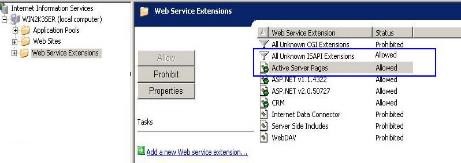
* Click on the Web Services Extensions folder, you will see a list on the left-hand side. When installing IIS, the services installed are in a highly secure and "locked" mode. By default, IIS serves only static content, meaning features like ASP, ASP.NET, Server-Side, and FrontPage Server Extension do not work unless enabled. If you do not enable this functionality after installing IIS, IIS returns a 404 error. Refer to the below image.
* Select all unknown ISAPI Extensions from the Web Services Column and select the Allow button.
* Also, select the Active Server Pages and click the allow button.
Enable parent paths
* Select Start | Control Panel | Administrative Tools | Internet Information Services IIS Manager.
* In IIS Manager, Go to the default Web site properties by clicking the right mouse button and clicking Properties.
* In the Default Website properties window, click on the “Home Directory” tab.
* In the “Home Directory” tab, click on the “Configuration” button.
* In the Configuration screen, click on the Options tab and set the Enable Parent Path option to check. Refer to the below image.
b. Configure IIS version 6 or above
* Select Start | Control Panel | Administrative Tools | Internet Information Services IIS Manager.
* Click on the Internet Information Service Manager (IIS) Manager| Server (Server\Administrator) | ISAPI and CGI Restrictions.
* Click on ISAPI and CGI Restrictions, allow access to Active Server Pages, and Allow unspecified ISAPI modules. When installing IIS, the service is installed in a highly secure and "locked" mode. By default, IIS serves only static content, meaning features like ASP, ASP.NET, Server-Side, and FrontPage Server Extension do not work unless enabled. If you do not enable this functionality after installing IIS, IIS returns a 404 error. Refer to the below image.
Enable parent path
* Select Start | Control Panel | Administrative Tools | Internet Information Services IIS Manager. You can even do this by clicking your Windows Start button and entering "inetmgr" into the search box. Then press enter.
* On the Connections pane, expand the server node and select your site from underneath "Sites."
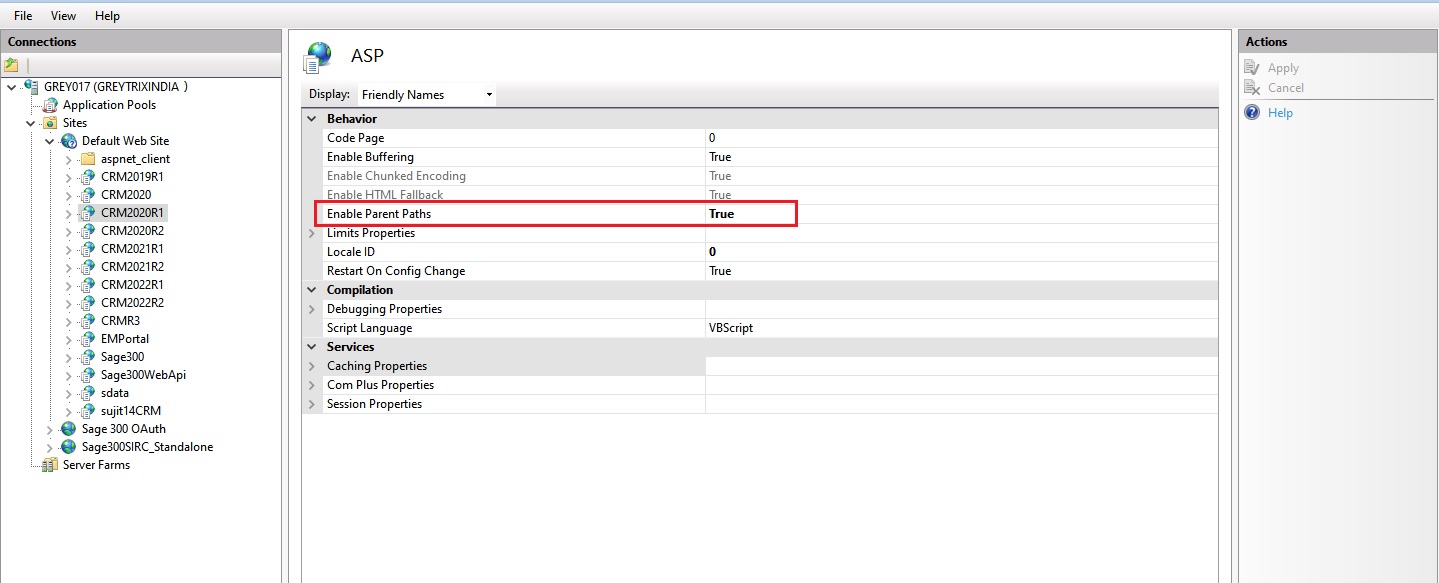
* On the Features view, double-click "ASP."
* Change "Enable Parent Paths" to "True."
* Under the Actions pane, click "Apply."