> For the complete documentation index, see [llms.txt](https://docs.greytrix.com/llms.txt). Markdown versions of documentation pages are available by appending `.md` to page URLs; this page is available as [Markdown](https://docs.greytrix.com/gumu-sage-crm-integration/sage-x3/installation-guide/gumu-setup-installation/installing-gumu-integration-setup-on-sage-crm-server.md).
# Installing GUMU™ Integration setup on Sage CRM server
1. Download the GUMU™ integration setup for your Sage CRM and ERP X3 versions from our website.
2. This setup needs to be installed on the Sage CRM server.
3. Click on the setup and run the setup with the “Run as Administrator” option on the Sage CRM server.
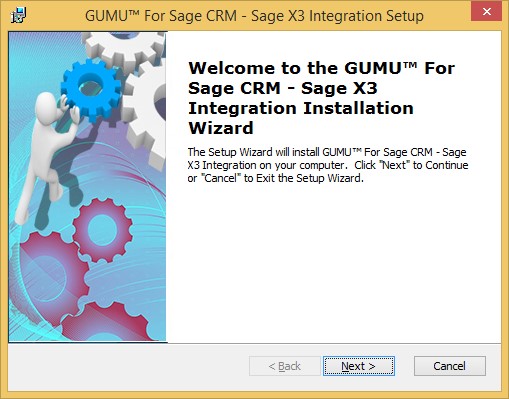
4. The setup will launch. Click on the NEXT button to proceed further.
5\. Click on the ‘Next’ button to accept the terms in the License Agreement.
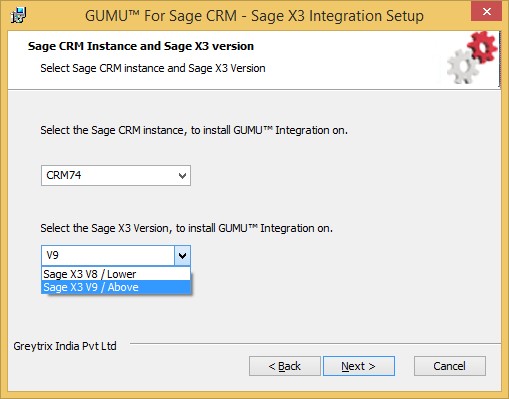
6\. Select the Sage CRM Instance name from the list of available Sage CRM instances and the version of Sage X3 for which you want to install the GUMU™. Click NEXT.
7\. Enter the Sage CRM Server name, Sage CRM SQL Database Name, and CRM SQL Server Credentials. Also, browse the path where you want to keep Sage CRM database backup. This will take the backup of your Sage CRM Database at the specified location if the Sage CRM server and Sage CRM SQL server both are the same.
8\. Enter the Sage X3 Server Name, Sage X3 SQL Database Name, and Sage X3 SQL Server Credentials along with Sage X3 Folder Name. Click ‘Next’ to proceed with the installation.
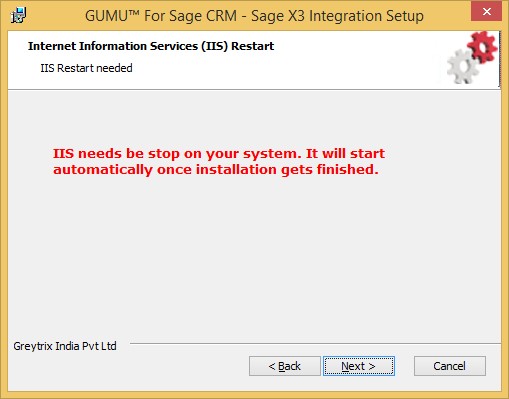
9\. During the installation, IIS needs to restart. Click on the ‘Next’ button to proceed with the IIS part and it will start automatically once the installation gets finished.
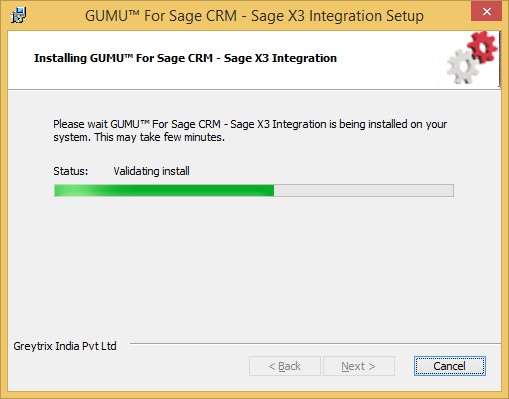
10\. Once IIS gets stopped, the GUMU™ Integration is ready to get installed on the Sage CRM Server. Click the Install button.
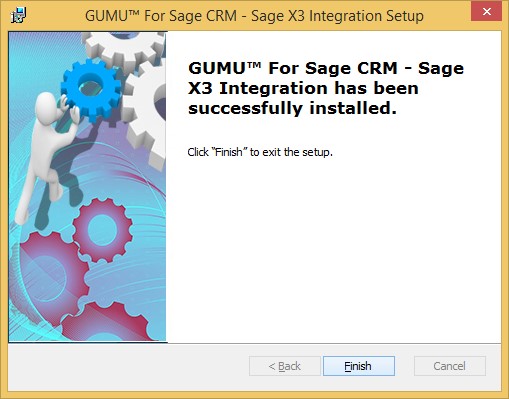
11\. Click on ‘Finish’ to exit the Setup wizard.
**Note**: - Please note that this will install the Trial version of GUMU™ Sage CRM – Sage X3 integration. You will have to contact Greytrix to get the license key for the complete version of the integration.