# Installing GUMU™ Integration setup on Sage CRM server

1. Download the GUMU™ integration setup from our website.
2. This setup has to be installed on Sage CRM server.
3. Please login to Sage CRM server as a Domain Administrator.
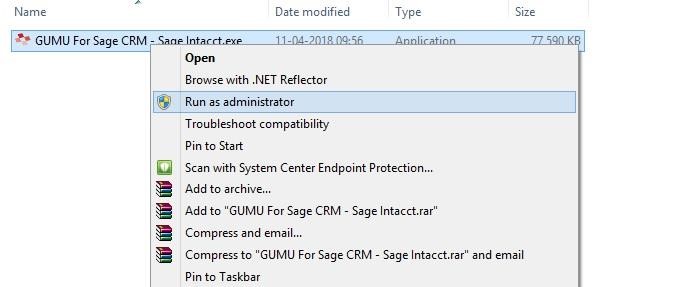
4. Click on the GUMU™ Integration setup and run the setup with “Run as Administrator” option on Sage CRM server.<br>

   <figure><img src="https://794987320-files.gitbook.io/~/files/v0/b/gitbook-x-prod.appspot.com/o/spaces%2F-MCRVg-TYx3gVa2Tqtf_%2Fuploads%2FuC2ao9JCou1Yc5EoY6AD%2F0.jpeg?alt=media" alt=""><figcaption></figcaption></figure>
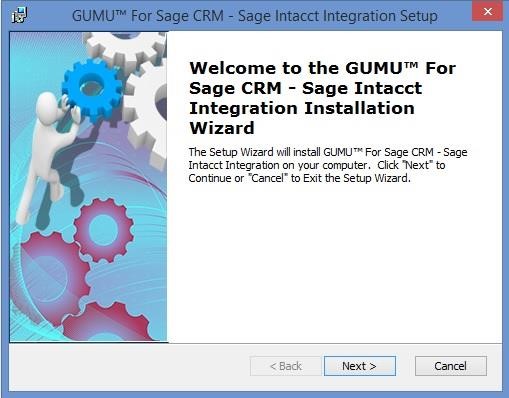
5. Setup will be launch. Click on the **NEXT** button to proceed further.\ <br>

   <figure><img src="https://794987320-files.gitbook.io/~/files/v0/b/gitbook-x-prod.appspot.com/o/spaces%2F-MCRVg-TYx3gVa2Tqtf_%2Fuploads%2FYHbxaJqnbq6MUZW0L2xX%2F1.jpeg?alt=media" alt=""><figcaption></figcaption></figure>
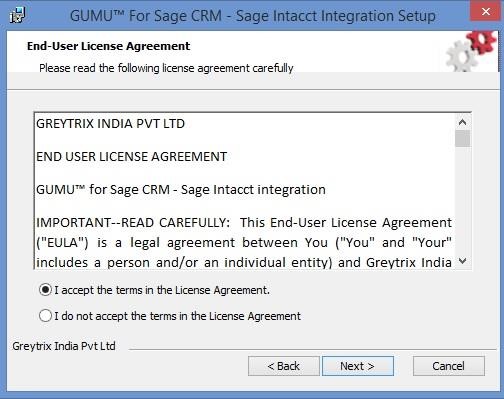
6. Click on ‘Next’ button to accept the terms in License Agreement.\ <br>

   <figure><img src="https://794987320-files.gitbook.io/~/files/v0/b/gitbook-x-prod.appspot.com/o/spaces%2F-MCRVg-TYx3gVa2Tqtf_%2Fuploads%2FdfCgKwYpkqeQJLMIiBSJ%2F2.jpeg?alt=media" alt=""><figcaption></figcaption></figure>
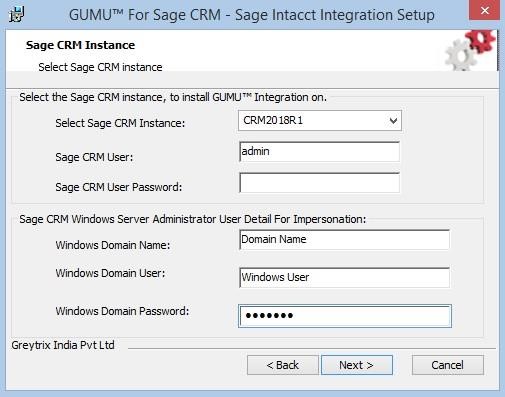
7. Select the Sage CRM Instance name from the list of available Sage CRM instances. Kindly enter correct system admin level Sage CRM user name and password along with Domain Administrator level Windows user and password. Click **NEXT**.\ <br>

   <figure><img src="https://794987320-files.gitbook.io/~/files/v0/b/gitbook-x-prod.appspot.com/o/spaces%2F-MCRVg-TYx3gVa2Tqtf_%2Fuploads%2F58gB34PrEbVQ7r1eZK01%2F3.jpeg?alt=media" alt=""><figcaption></figcaption></figure>
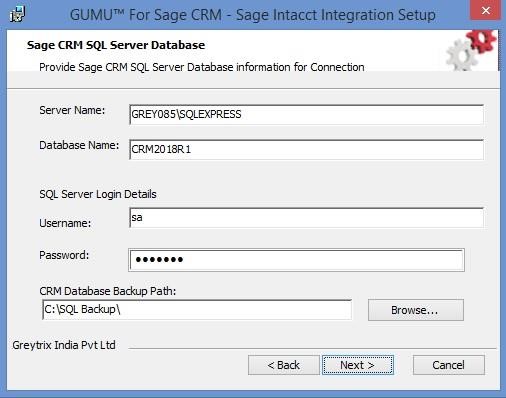
8. Enter the Sage CRM SQL Server Instance name, Sage CRM SQL Database Name and Sage CRM SQL Server Credentials. Also browse the path where you want keep Sage CRM database backup. This will take the backup of your Sage CRM Database at specified location.\ <br>

   <figure><img src="https://794987320-files.gitbook.io/~/files/v0/b/gitbook-x-prod.appspot.com/o/spaces%2F-MCRVg-TYx3gVa2Tqtf_%2Fuploads%2FwekO61nZhdeAFtqP4ztr%2F4.jpeg?alt=media" alt=""><figcaption></figcaption></figure>
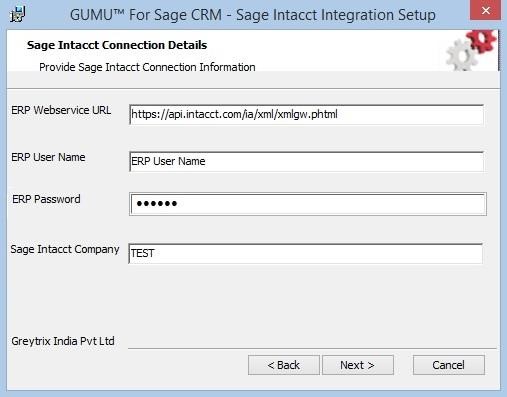
9. Enter the Sage Intacct credentials (Case Sensitive) along with Sage Intacct Company Name. Click ‘**Next**’ to proceed further.\ <br>

   <figure><img src="https://794987320-files.gitbook.io/~/files/v0/b/gitbook-x-prod.appspot.com/o/spaces%2F-MCRVg-TYx3gVa2Tqtf_%2Fuploads%2Fk4YUxW6hEE0k3L677dTj%2F5.jpeg?alt=media" alt=""><figcaption></figcaption></figure>

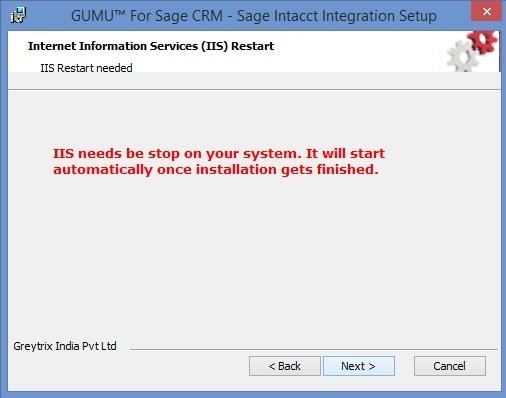
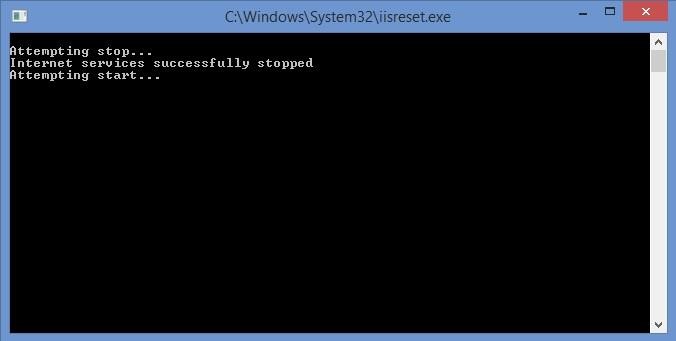
During the installation, IIS needs to restart. Click on ‘**Next’** button to proceed with IIS reset part and

it will start automatically once installation gets finished.<br>

<figure><img src="https://794987320-files.gitbook.io/~/files/v0/b/gitbook-x-prod.appspot.com/o/spaces%2F-MCRVg-TYx3gVa2Tqtf_%2Fuploads%2FSbosDoMYMRrW2Rb0zEM7%2F6.jpeg?alt=media" alt=""><figcaption></figcaption></figure>

<figure><img src="https://794987320-files.gitbook.io/~/files/v0/b/gitbook-x-prod.appspot.com/o/spaces%2F-MCRVg-TYx3gVa2Tqtf_%2Fuploads%2FdtNWUd2Df6CRyWZMeYHU%2F7.jpeg?alt=media" alt=""><figcaption></figcaption></figure>

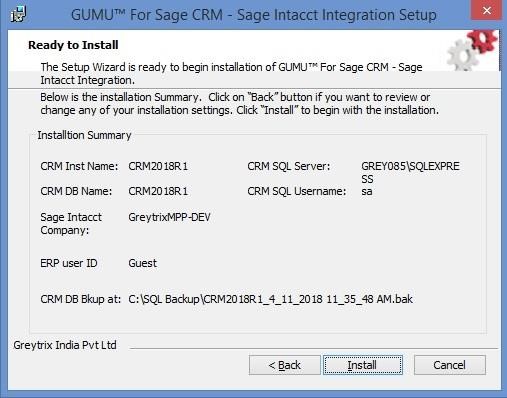
Now, the GUMU™ Integration is ready to get installed on Sage CRM Server. Please verify all the details you entered and Click on ‘**Install’** to start the installation.

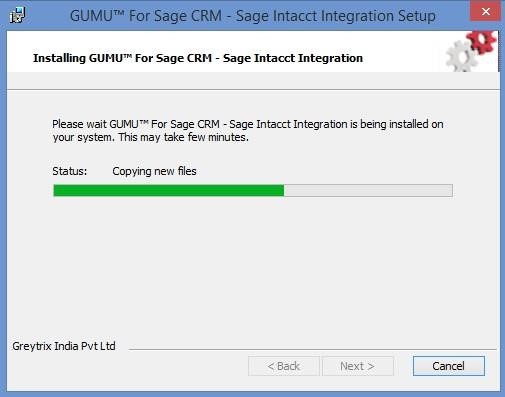
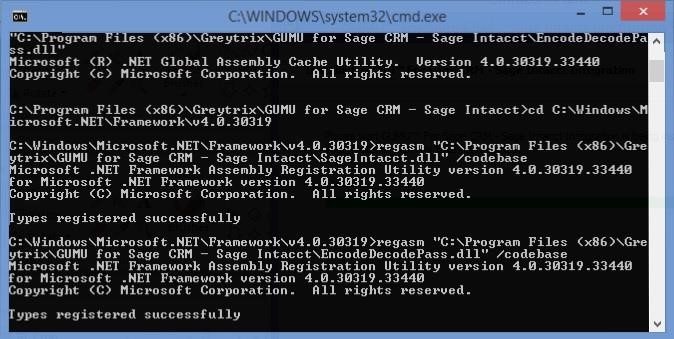
Please note that it will also install components in Sage CRM which will create fields and scripts require for GUMU to work.<br>

<figure><img src="https://794987320-files.gitbook.io/~/files/v0/b/gitbook-x-prod.appspot.com/o/spaces%2F-MCRVg-TYx3gVa2Tqtf_%2Fuploads%2FZlzXd0ckl0msOr940gYi%2F8.jpeg?alt=media" alt=""><figcaption></figcaption></figure>

<figure><img src="https://794987320-files.gitbook.io/~/files/v0/b/gitbook-x-prod.appspot.com/o/spaces%2F-MCRVg-TYx3gVa2Tqtf_%2Fuploads%2FbP63Yu9m3niyfh8kMg1c%2F9.jpeg?alt=media" alt=""><figcaption></figcaption></figure>

<figure><img src="https://794987320-files.gitbook.io/~/files/v0/b/gitbook-x-prod.appspot.com/o/spaces%2F-MCRVg-TYx3gVa2Tqtf_%2Fuploads%2FOhUuWplhASFW0fs66i17%2F10.jpeg?alt=media" alt=""><figcaption></figcaption></figure>

<figure><img src="https://794987320-files.gitbook.io/~/files/v0/b/gitbook-x-prod.appspot.com/o/spaces%2F-MCRVg-TYx3gVa2Tqtf_%2Fuploads%2FiQ1SxUTdyWainUEkh1W1%2F11.jpeg?alt=media" alt=""><figcaption></figcaption></figure>

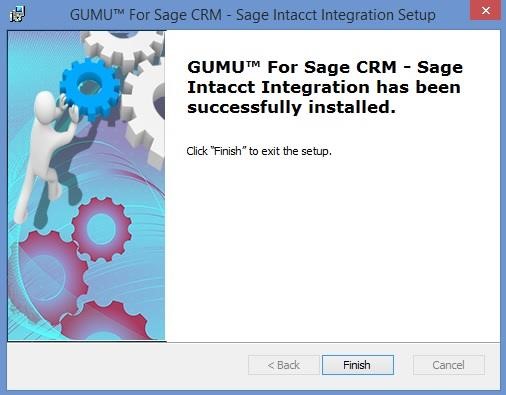
Click on ‘**Finish**’ to exit the Setup wizard.\ <br>

<figure><img src="https://794987320-files.gitbook.io/~/files/v0/b/gitbook-x-prod.appspot.com/o/spaces%2F-MCRVg-TYx3gVa2Tqtf_%2Fuploads%2FlVzBFa7ERNntThNkF6Jn%2F12.jpeg?alt=media" alt=""><figcaption></figcaption></figure>

**Note: -** Please note that this setup will install the Trial version of GUMU™ Sage CRM – Sage Intacct integration. You will have to contact Greytrix to get the license key for a complete version of the integration.

For Configuring GUMU™ from Sage CRM, kindly refer [User Guide](https://docs.greytrix.com/gumu-sage-crm-integration/sage-intacct/user-guide).