> For the complete documentation index, see [llms.txt](https://docs.greytrix.com/llms.txt). Markdown versions of documentation pages are available by appending `.md` to page URLs; this page is available as [Markdown](https://docs.greytrix.com/gumu-sage-crm-integration/sage-100/installation-guide/odbc-settings-for-performance-issue/csodbc-settings-in-sage-100-application..md).
# CSODBC settings in Sage 100 application.
1. Navigate to the **Library Master> Setup> System Configuration.**
2. In the ODBC driver tab the user needs to follow the below steps
* Check the **Enable C/S ODBC Driver** checkbox.
* Enter the IP address of the server where the Sage 100 application is installed in the ODBC Server Name field.
* Enter **20222** port number in ODBC server port field.
3. After following all the above steps click on accept button. Refer below screenshot of System Configuration screen.
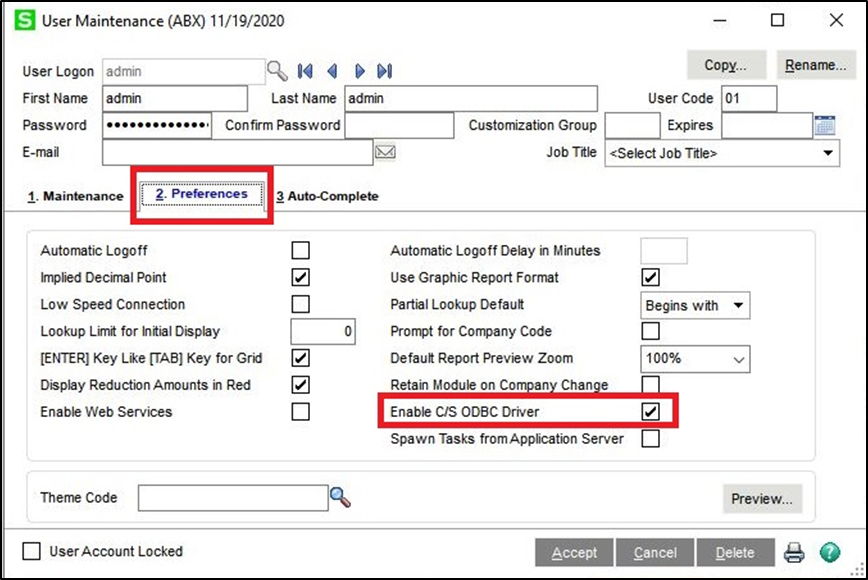
4. In Sage 100 now navigate to **Library Master > User Maintenance.**
5. Then select the user with which you have login and navigate to Preference tab.
6. Check the **Enable C/S ODBC Driver** checkbox present on preference tab of user maintenance screen and click on accept button.
7. Refer below image of User Maintenance screen.