# Timesheets

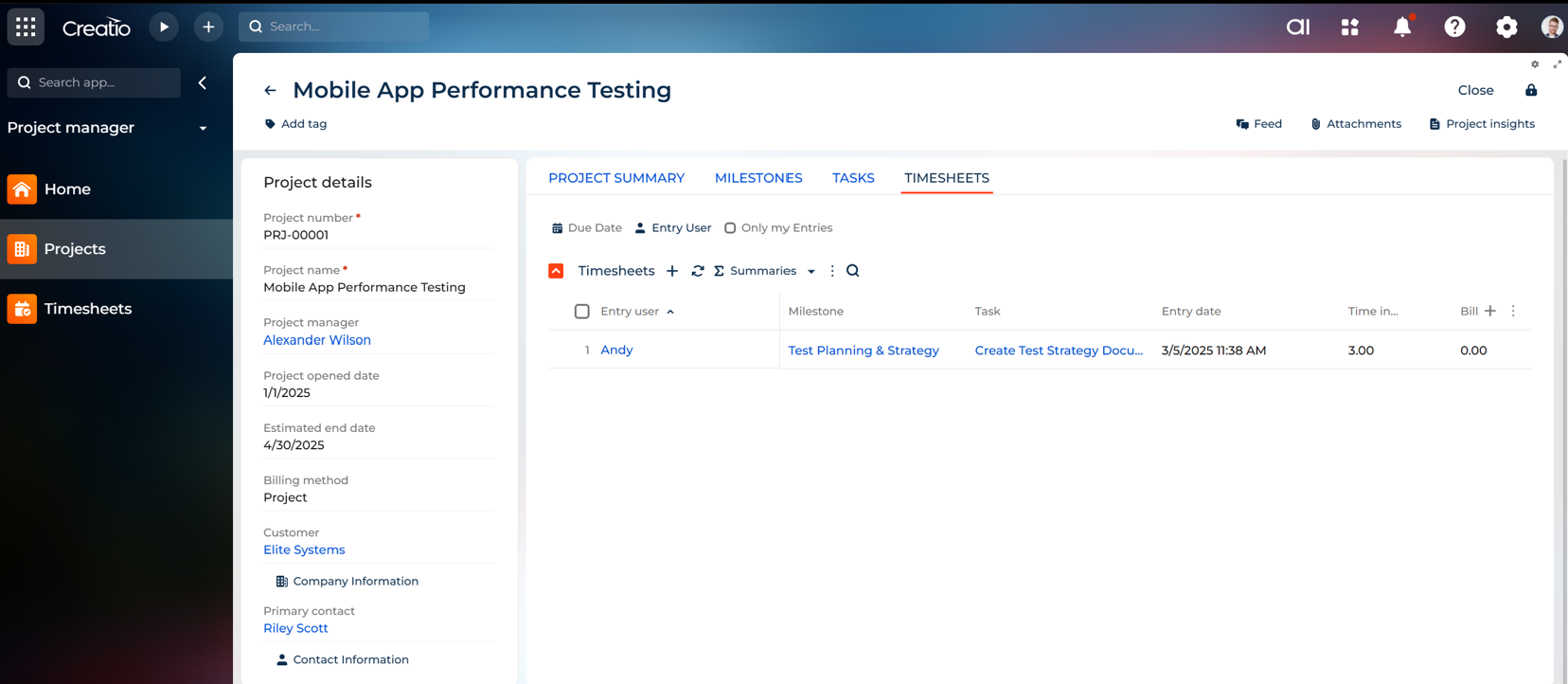
Timesheets allow your resources to log their work entries on a diary basis, cross-referencing projects and tasks to help regulate the schedule and progress of the project. Rather than maintaining the project purely by task updates, timesheets give you the realistic scenario of what is actually happening versus what should be happening.

Timesheets contain the concept of **billable** and **unbillable** days. This allows resources to log timesheets as a mixture of billable time (which is potentially cross charged to a client), and unbillable time. Unbillable time may be internal activities, or time which has to be absorbed internally rather than charging one to the client.

**Billable** days are the basis of drawdown of allocation of days on tasks. These are the entries which will affect the ‘**Estimated and Calculated End Dates**’. It will also affect the running ‘**Remaining Days**’ on each individual task. Unbillable days will not affect these metrics of the project.

For those Projects which are not deemed commercial, simply using billable days instead of a mixture of billable and unbillable is recommended to allow the end dates to be calculated properly as the project progresses.

### Timesheet Listing <a href="#toc465247683" id="toc465247683"></a>

A full listing of all time sheets belonging to this project can be seen in the **Timesheets** tab. There are two modes of view of the Timesheets: Calendar View’ and ‘List View’. In either view, by clicking into the appropriate entry, the full timesheet details can be seen (see next section). Here is a sample of the ‘**Calendar**’ view.

<figure><img src="/files/ES5m7uKovKeJh9czsY08" alt=""><figcaption></figcaption></figure>

### Add/Edit Timesheet Entries

The "Add Timesheet" screen allows users to log their time for a specific project, milestone, and task. Users can input the time spent, track billed and unbilled hours, and add relevant notes for better time management. This screen ensures accurate tracking for project management and billing purposes.

<figure><img src="/files/fSeqnXSJzrYMu8uYP1EV" alt=""><figcaption></figcaption></figure>

**Field List and Descriptions**

<table><thead><tr><th width="66.5" valign="bottom">Sr. No.</th><th width="166" valign="bottom">Field Name</th><th valign="bottom">Short Description</th></tr></thead><tbody><tr><td valign="bottom">1</td><td valign="bottom">Project</td><td valign="bottom">The project name associated with the timesheet entry. This field is mandatory.</td></tr><tr><td valign="bottom">2</td><td valign="bottom">Milestone</td><td valign="bottom">The specific milestone within the project related to the timesheet. This is mandatory.</td></tr><tr><td valign="bottom">3</td><td valign="bottom">Task</td><td valign="bottom">The task under the milestone that the user worked on. This field is mandatory.</td></tr><tr><td valign="bottom">4</td><td valign="bottom">Entry User</td><td valign="bottom">The user who is logging the timesheet. This field is auto populated.</td></tr><tr><td valign="bottom">5</td><td valign="bottom">Entry Date</td><td valign="bottom">The date and time when the timesheet entry is created. Auto-generated by the system.</td></tr><tr><td valign="bottom">6</td><td valign="bottom">Time Invested</td><td valign="bottom">The total time spent on the task. It is entered by the user.</td></tr><tr><td valign="bottom">7</td><td valign="bottom">Billed Hours</td><td valign="bottom">The portion of the invested time that is billable.</td></tr><tr><td valign="bottom">8</td><td valign="bottom">Notes</td><td valign="bottom">Optional notes or comments for additional context about the timesheet entry.</td></tr></tbody></table>


---

# Agent Instructions: Querying This Documentation

If you need additional information that is not directly available in this page, you can query the documentation dynamically by asking a question.

Perform an HTTP GET request on the current page URL with the `ask` query parameter:

```
GET https://docs.greytrix.com/creatio-add-ons/project-manager-for-creatio/user-guide/timesheets.md?ask=<question>
```

The question should be specific, self-contained, and written in natural language.
The response will contain a direct answer to the question and relevant excerpts and sources from the documentation.

Use this mechanism when the answer is not explicitly present in the current page, you need clarification or additional context, or you want to retrieve related documentation sections.